Where to Find Downloads on Netflix on Laptop? [2026 Guide]
 Ashley Wood
- 26 September, 2026
- Blog
You've downloaded your favorite Netflix shows for offline viewing, but then you might suddenly wonder: where are Netflix downloads stored?
In this guide, we'll explain where Netflix downloads are stored across all major devices – computers, phones, or tablets – and show you how to change the Netflix download location.
Related Article: Where Are Netflix Downloads Stored on Android?
1. Find Netflix Downloads on Computer (Windows PC)
Where Are Netflix Downloads Stored on Windows?
Netflix once offered a dedicated app for Windows 10/11, but since 2024, the download feature has been discontinued for these PCs. If you downloaded Netflix videos before this cutoff, your files are hidden in a system folder. Here's how to find them:
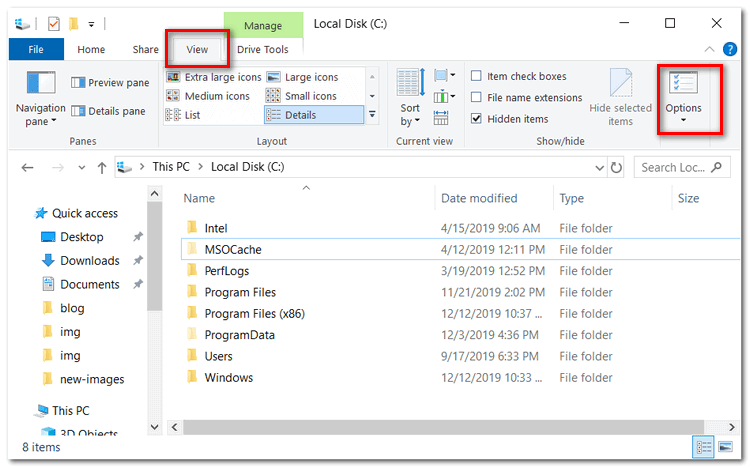
- First, open File Explorer from the Task Bar. Because the Netflix folder is a hidden folder, you are required to change the property of the folder if you want to open it.
- At the top of the File Explorer interface, please select "View" tab and then click on the Options menu button.
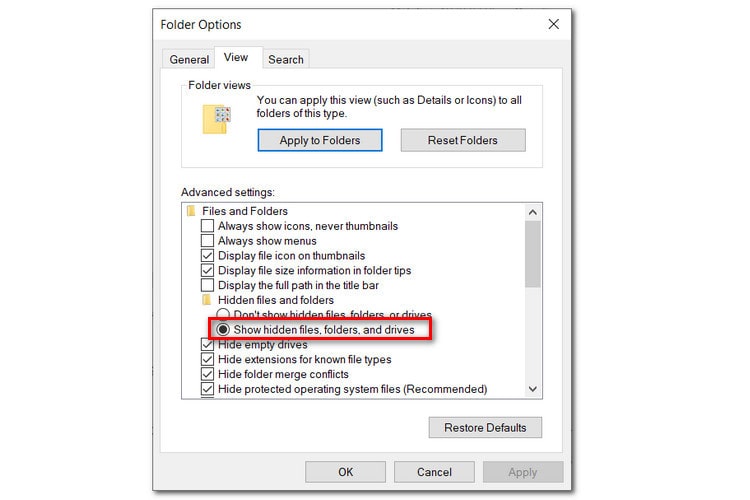
- In Folder Options, select the View tab and scroll to the Files and Folders settings. If it's not checked, please select the Show Hidden files, folders, and drives setting to enable it. Make sure to select OK and the menu will close out.
- From File Explorer, you can navigate to the Netflix download folder by directly copying and pasting the path into the explore box. The full path of Netflix downloads on laptop is: C:\Users\[USERNAME]\AppData\Local\Packages\4DF9E0F8.Netflix_mcm4njqhnhss8\LocalState\offlineInfo\downloads.
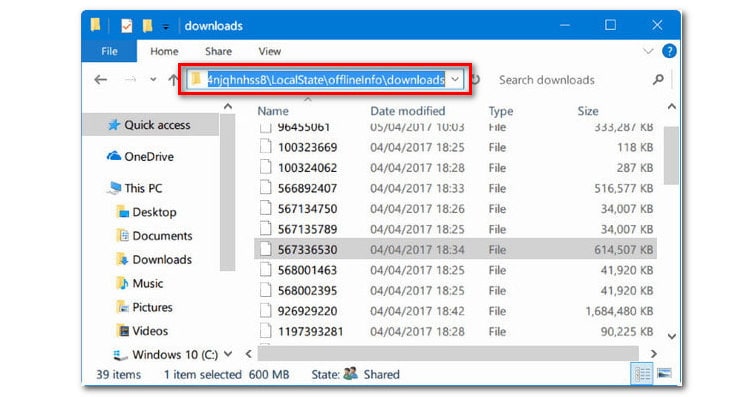
Here [USERNAME] is the Windows folder with your current username.
While you can locate the files here, you can only play them through the Netflix app — no other media players are supported. Because you cannot transfer Netflix downloads to other devices. This is a common restriction of downloads from the official Netflix app, even if you manage to find the storage folder.
How to Download Netflix Movies on Laptop?
As mentioned earlier, Netflix stopped supporting downloads on Windows 10/11 PCs in 2024. If you want to download Netflix videos on a computer now, you'll need a third-party tool — since the official app no longer offers this feature. FlixiCam is the ideal replacement to download Netflix videos on computer.
FlixiCam Netflix Downloader is a desktop tool designed to download Netflix videos in 1080P HD as usable MP4 or MKV files — compatible with any media player, phone, tablet, or TV. Best of all, Netflix MP4 downloads never expire, so you can keep your favorite Netflix shows and movies forever.
What's more, it preserves original audio tracks (including 5.1 surround sound) and multi-language subtitles. FlixiCam support batch downloads at 10x speed — perfect for downloading entire seasons at once.
What Make FlixiCam the Top Choice:
- Built-in Netflix web player for direct search & playback.
- Download Netflix videos (up to 1080 p) in MP4 or MKV format.
- Keep Netflix downloads forever — even if you cancel Netflix subscription.
- Support batch download Netflix videos in 10x speed.
- Transfer Netflix downloads to any device for flexible viewing.
- Keep multiple language tracks and subtitle options.
- Ad-free Netflix downloads (Basic/ad-supported plans included).
Compatibility: Windows 10/11, macOS 11 and above.
📍 If you're looking for a tool to download any streaming video (including Netflix, Disney+, Amazon Prime Video, Hulu, HBO Max, Paramount+, Peacock, Apple TV+ …) to MP4, Flixicam Stream One is the top pick.
Tutorial: How to Download Netflix Movies on Laptop with FlixiCam
Step 1. Sign in with Netflix Account to Access Your Library
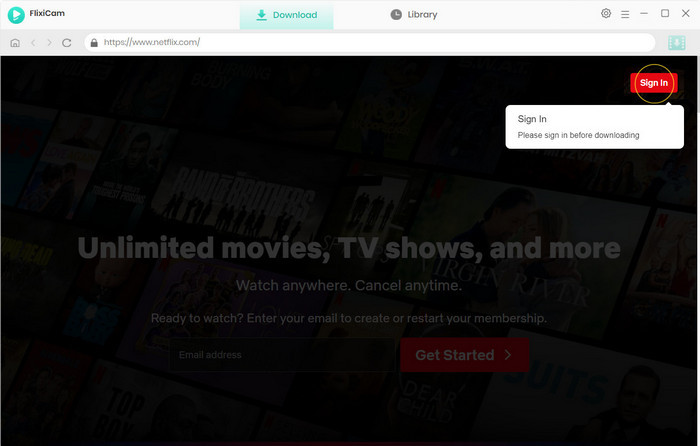
Launch FlixiCam, and you will access Netflix in the built-in player. Click on "Sign In" to log into your Netflix account.
Step 2. Choose Netflix Format
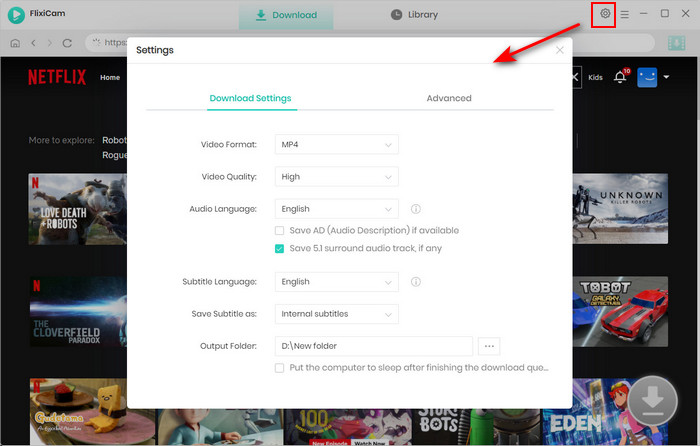
Go to the General Settings by clicking the Gear icon in the upper-right corner. Here, you can customize the output format, output quality, output path, and other settings to suit your preferences.
Step 3. Search Netflix Videos on FlixiCam
Enter the Netflix title into the search bar, and click the "+" button in the bottom right corner to import Netflix videos you want to download.
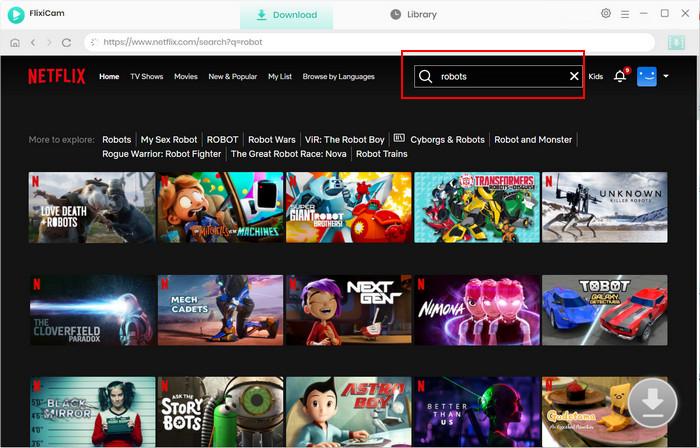
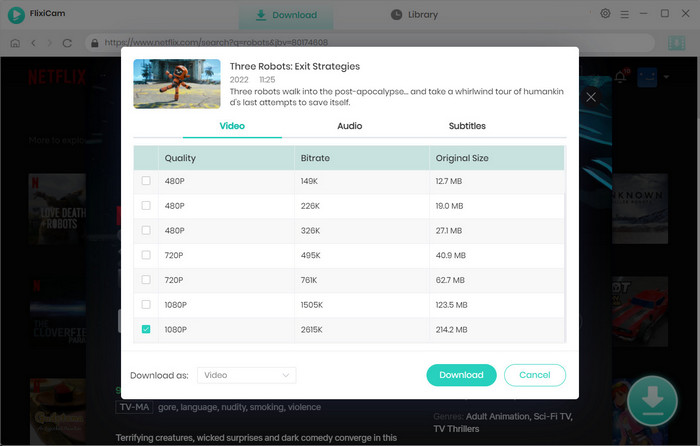
Step 4. Choose Netflix File Size, Video Quality, Audio Tracks
FlixiCam provides advanced options for selecting video quality, file size, bitrate, audio tracks (including 5.1 audio), and subtitles in various formats.
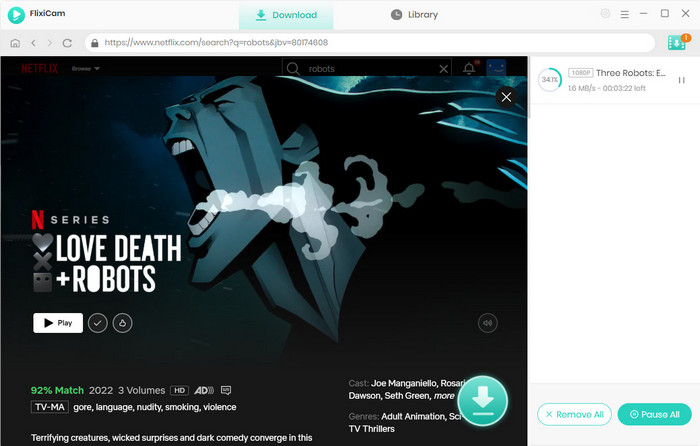
Step 5. Download Netflix Videos
Tap the Download button to start the download process. It is available to add extra titles to the download queue for downloading Netflix videos in batches.
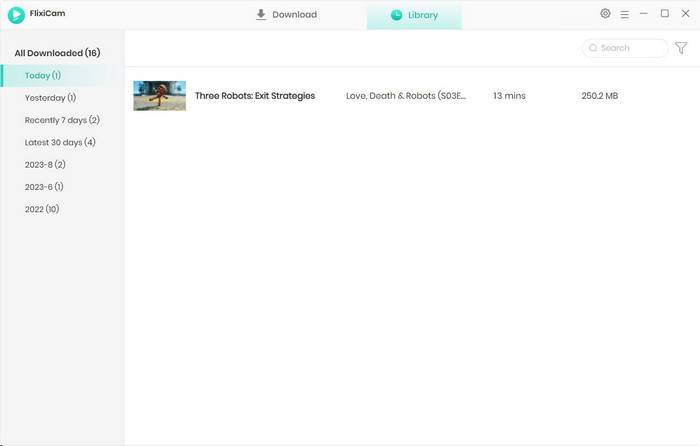
Step 6. Find Netflix Downloads on Computer
Once the download finishes, head to the Library tab, there are all your Netflix downloaded videos. To locate Netflix downloads on your laptop, simply click the folder icon next to any video. It will directly open the output folder you set earlier.
2. Find Netflix Downloads on Android Devices
Where Does Netflix Download to on Android Devices?
Android users have more direct access to download folders, but you'll still need to unhide hidden files first.
- Open your device's Files app, go to Settings, and enable "Show hidden files". Then, go to Internal Storage (or Phone) > Android > data > com.Netflix.mediaclient > files > Download > .of.
- Inside this folder, you'll see subfolders named with 8-digit random numbers — these contain your Netflix downloads.
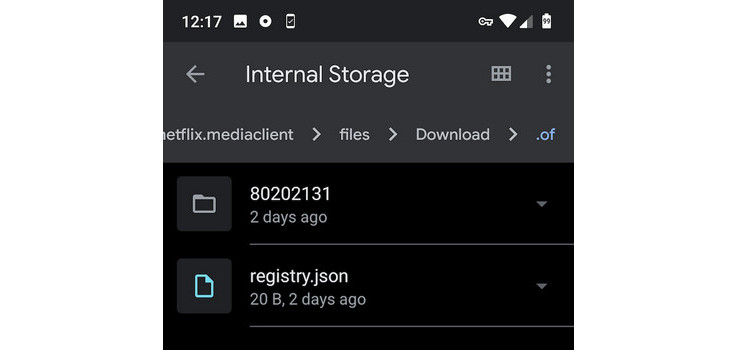
However, like on PC, these Netflix files are protected. You can move the folders, but they'll only play within the Netflix app. So even if you find where Netflix downloads are stored on your Android, you can't use them with other apps.
How to Change Netflix Download Location to SD Card
If you're running out of internal storage, move future Netflix downloads to an SD card directly in the app. Open Netflix > tap your profile icon > App Settings > Downloads > Download Location. Select "SD Card" to save new Netflix videos there.
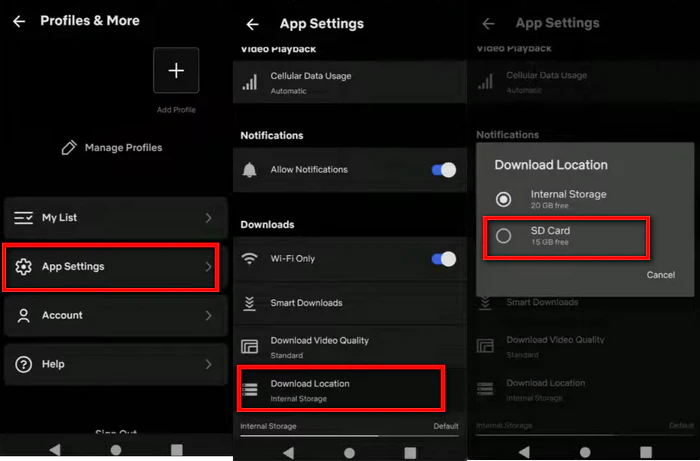
This trick is handy for anyone who wants to keep Netflix downloads off their phone's internal storage. If you can't store Netflix downloads on your SD card, read this article >>
3. Find Netflix Downloads on iPhone & iPad
Where Are Netflix Downloads Stored on iOS?
iOS's security model won't allow you to find the Netflix files in the device's file system, so you can't access Netflix download files directly via the iOS File app. Instead, where do Netflix movies download to on your iPhone?
All Netflix downloads are stored within the Netflix app itself. To view them, open Netflix > tap "My Netflix" > select "Downloads". Here, you'll see all your offline Netflix videos — but you can't transfer these files to other apps or devices. What's more, deleting the Netflix app will erase all downloads.
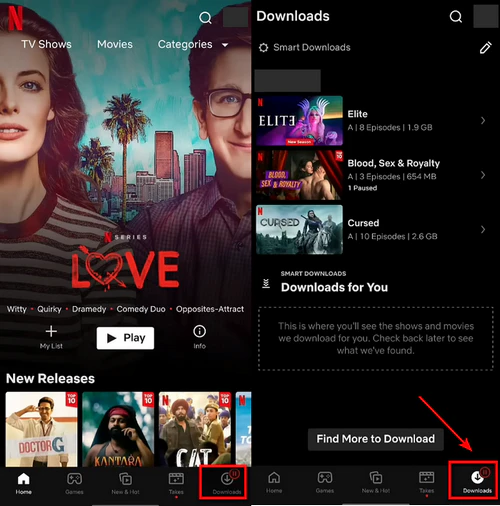
Managing Storage for Netflix Downloads on iOS
Since you can't change the download location on iPhone/iPad, optimize storage with two tricks:
- Enable "Smart Downloads" in Netflix's App Settings — this automatically deletes watched episodes and downloads new ones when on Wi-Fi.
- You can also lower the download quality: Go to App Settings > Download Video Quality > select "Standard" to reduce file size.
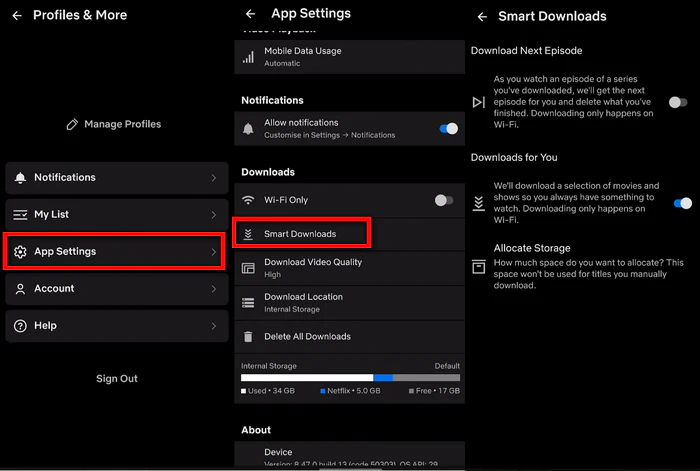
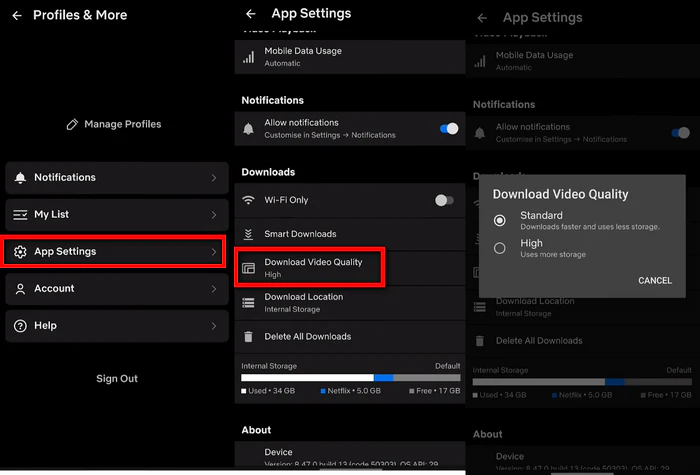
For more space, subscribe to iCloud to offload other data. These steps help you make the most of your storage even when you can't choose where does Netflix download to.
📍Want to download Netflix to your Macbook? Grab FlixiCam Netflix Downloader!👇
 DOWNLOAD WIN FOR FREE
 DOWNLOAD MAC FOR FREE
4. Find Netflix Downloads on Amazon Fire & Chromebook
On Amazon Fire tablets and Chromebooks, Netflix downloads are stored in the device's internal storage — not the standard Downloads folder. You won't be able to find the Netflix files via the file manager; instead, open the Netflix app > go to the "Downloads" section to watch.
For Chromebooks, you can change the download location to a USB drive: Insert the USB, go to Chromebook Settings > Device > Storage management > External storage preferences > enable the USB drive. Then, in Netflix's App Settings, select the USB drive as your Download Location. This is a useful option for Chromebook users who want to expand storage for their Netflix downloads.
5. FAQs About Netflix Downloads
Why can't I change the Netflix download location on iPhone/iPad?
Netflix downloads are stored directly within the app's private storage (not accessible via the iOS File app), so the platform doesn't allow changing the default download location.
Can I copy Netflix's native downloads to another device (e.g., USB drive, external hard drive) for playback?
No. All native Netflix downloads are protected, even if you locate the files (on Windows or Android). Copying them to other devices won't work — they can only be played within the Netflix app on the original device where they were downloaded.
FlixiCam lets you download Netflix videos to MP4 and transfer them to any device. 👇
How do I delete Netflix downloads in bulk to free up storage?
Bulk deletion steps vary by device:
- Android/iOS: Open Netflix > Go to "Downloads" > Tap the three-dot menu > Select "Delete All Downloads".
- Windows (legacy app): Open the Netflix app > Go to "My List" > Click "Downloads" > Select "Delete All".
- Fire/Chromebook: Go to Netflix's "Downloads" section > Use the "Edit" or "Delete" option to select multiple titles at once.
Enabling "Smart Downloads" also auto-deletes watched episodes to save space.
Learn More: How to Delete Netflix Downloads
Is there an official way to download Netflix videos on a Windows 10/11 PC?
No. Netflix discontinued the download feature for Windows 10/11 PCs in 2024, and there's no official replacement. If you want to download Netflix videos on a computer, a third-party tool like FlixiCam is the reliable solution — it lets you download Netflix videos as MP4 files to your preferred folder.
Do Netflix download expiration dates reset if I re-download the videos?
Yes. If a Netflix download is about to expire (e.g., 30 days after downloading or 48 hours after starting playback), re-downloading it will reset the expiration period.
If I move Netflix downloads to an SD card on Android, can I play them on another phone?
No. Even if you move the Netflix download folders to an SD card, they're tied to the original device's Netflix app. Inserting the SD card into another phone won't allow playback. To play Netflix videos across multiple devices offline, download them to MP4 with a tool like Flixicam.
Can I download movies from Netflix on multiple devices?
Yes, you can download movies from Netflix on multiple devices, but the number of devices depends on the Netflix subscription plan you have, the maximum number is 4 devices. On the contrary, FlixiCam allows you to stream the downloads on unlimited devices.
Final Thoughts
Knowing where Netflix downloads are stored is the first step to taking control of your offline Netflix videos. However, if you're tired of searching for hidden Netflix files, give FlixiCam a try. It's the simplest way to download Netflix videos in MP4 format. With FlixiCam, you can watch Netflix downloads on computer without the official app, transfer MP4 files to your phone, or keep Netflix videos forever!
📢 Disclaimer
All tutorials here are for personal entertainment & education only. Please ensure you have a valid legal account on the relevant platforms. We do not support commercial distribution or piracy — always respect content creators' copyrights.
Ashley Wood | Senior Writer