10 Free Ways to Record YouTube Live Stream on Laptop/Mobile/Online Web
 Ashley Wood
- 28 September, 2026
- Blog
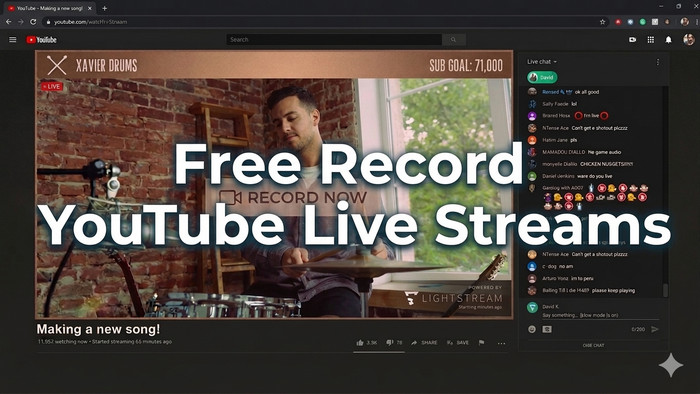
YouTube Live Streams aren't always saved on the platform. So if you want to watch it later on your own time, without buffering, it's a good idea to record live stream on YouTube. Here's this article, we will show you 100% working method to capture YouTube Live on laptop, mobile or online web page freely.
Part 1. Record YouTube Live Stream on Laptop
If you are a desktop user, it's more convenient to make a screen recording for your favorite YouTube Live Event. You can just use the native built-in screen recorder on Windows or Mac to save your moment.
1.1 Free Record YouTube Live Stream with Native System Recording (Easiest)
For Windows Users: Win+G
If you are using a Windows PC, you can press Win + G on keyboard, then you will get the gaming overlay. Just hit the record button, and your laptop will automatically screen record the playing YouTube Live streams.
For Mac Users: Shift + Command+5
When using Mac, you can easily press Shift + Command + 5. Then choose "Record Entire Screen" or "Record Selected Portion". Now, you are ready to capture YouTube Live Content.
1.2 Record with FlixiCam All-In-One Video Recorder 🏆
Another way to record a YouTube live stream is using FlixiCam's All-In-One Video Recorder (StreamOne). This tool has a built‑in video recorder that supports capturing live streams from YouTube or other 1000+ platforms in up to 8K resolution. The YouTube Live video will save as an MP4 or MKV file, so you can watch it offline whenever you want.
Don't want to wait till the records end? You can also set a timer on FlixiCam so it will stop recording when the time is up. What's important is, when your YouTube Live stream buffers, this tool automatically skips those moments - so you end up with a smooth, uninterrupted recording.
Main Features:
- Record YouTube Live Stream to MP4/MKV.
- Download Streaming Videos from 1000+ sites.
- Customize Your Downloads by Selecting Video Quality, File Size, Bitrate, etc.
- Up to 8K Resolution is Supported.
- 10X Download Speed to Save Video.
- Support Batch-Download Mode.
Compatibility: Windows 10/11, macOS 11 and above.
How to Use FlixiCam YouTube Live Recorder Desktop App
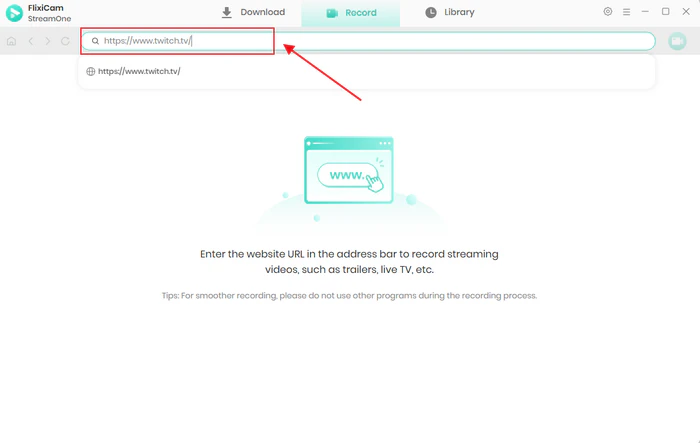
Step 1. Open the FlixiCam YouTube Live Recorder and switch to the Recorder mode. Then copy the YouTube Live Stream URL and paste on its search bar.
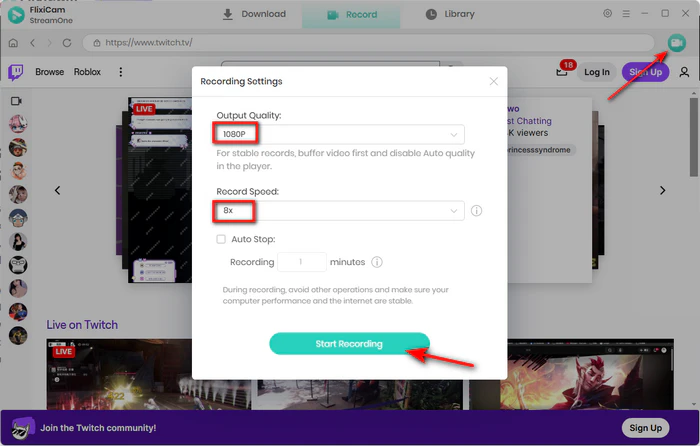
Step 2. Start playing the YouTube live stream in FlixiCam's built‑in browser. Then, inside FlixiCam, begin recording and choose your preferred resolution and audio settings.
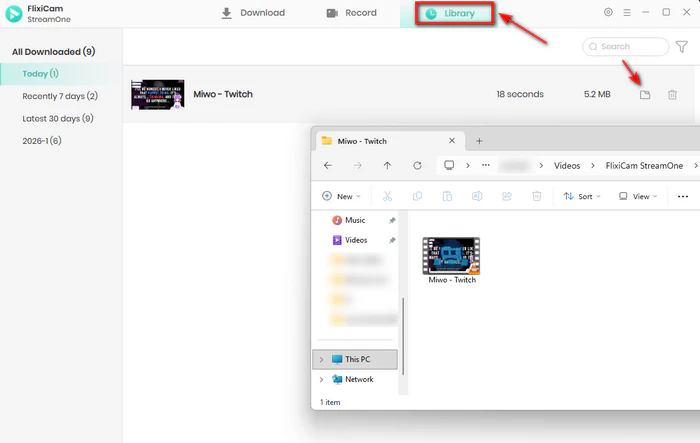
Step 3. When the stream ends (or when you manually stop recording), FlixiCam saves the YouTube Live video file to the folder you picked, as an MP4 or MKV file.
Free Download Part of YouTube Video - 100% Working
Want to just download a clip from a YouTube video? Get online YouTube trimmers, YouTube's Clip feature, and FlixiCam YouTube Clip Downloader here. Learn More > >
1.3 Free Record YouTube Live Stream with VLC Media Player
Besides FlixiCam, you can also use VLC Media Player to record a YouTube live stream totally free - but only if you can open the live stream's URL inside VLC first.
- VLC no longer plays most modern YouTube videos directly without extra steps. So it's not guaranteed to work for every live stream. But if the stream URL does work in VLC, you can then use VLC's built‑in record feature to save it.
VLC Media Player Doesn't Support Playing the Most Recent YouTube Videos:
How to Try Recording YouTube Live with VLC (Windows / macOS)
Step 1. Download and install the latest version of VLC from videolan.org.
Step 2. Copy the URL of your YouTube live stream page.
Step 3. On VLC, then go to Media > Open Network Stream (or press Ctrl+N). Paste the YouTube link into the "Network URL" box and click Play.
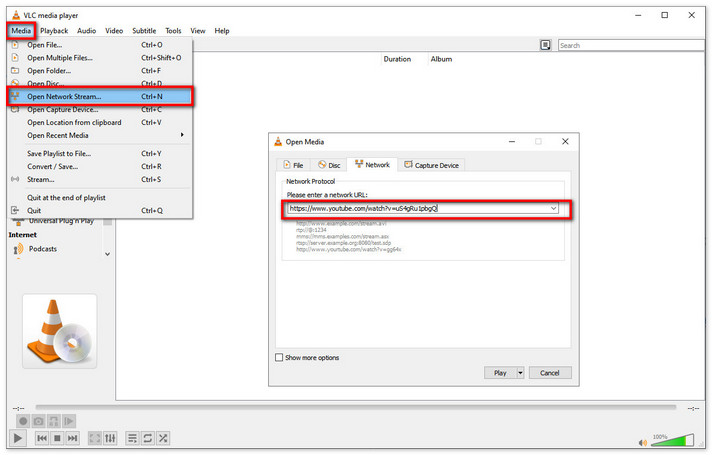
Note: If VLC says it can't play the stream, or nothing loads, then VLC cannot record it this way.
Step 4. While the live stream is playing in VLC, click the Record button from the bottom toolbar.
Tips: If you can't find the Record button, go to View > Advanced Controls to enable the Record button appear on the main toolbar.
Step 5. When the YouTube Live stream ends (or you want to stop), click the Stop button. You can find the YouTube MP4 or TS file from your default Videos folder.
1.4 Free Record YouTube Live Stream with QuickTime Player (Mac)
On Mac, you can also use its native QuickTime Player to record a YouTube live stream, as well as use Mac's screen‑recording feature.
How to Record a YouTube Live Stream On Mac
Step 1. Open QuickTime Player from your Applications folder.
Step 2. From the menu bar at the top, go to File > New Screen Recording.
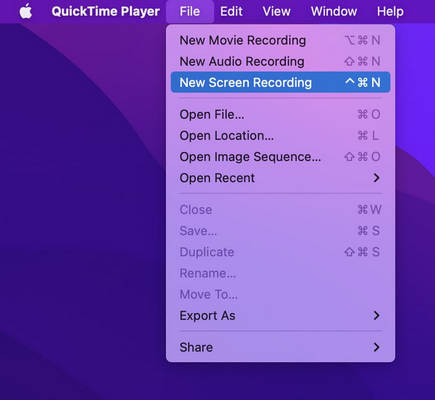
Step 3. A small recording toolbar will pop up. Click the arrow next to the red Record button. Then select just the YouTube Live player area to record.
Step 4. Start playing the YouTube stream, and QuickTime will now record both the video and any sound.
Step 5. When you want to stop, click the black Stop button. Go to File > Save to find your recorded YouTube Live files in MOV format.
Part 2. Record YouTube Live Stream on Android
You can still record YouTube live streams on Android in 2026 - you can use the Android native screen recorder, or the third-party tools of XRecorder and AZ Screen Recorder.
2.1 How to Use Native Android Screen Recorder to Capture YouTube Live Freely
Step 1. Make sure you have a modern Android phone (Android 10 and above), this device typically has a screen‑recording shortcut.
Step 2. Open the YouTube app and start the live stream.
Step 3. Swipe down from the top of your screen to get the quick settings panel.
Step 4. Choose "Screen Recorder", allow microphone permission if needed, then tap Start.
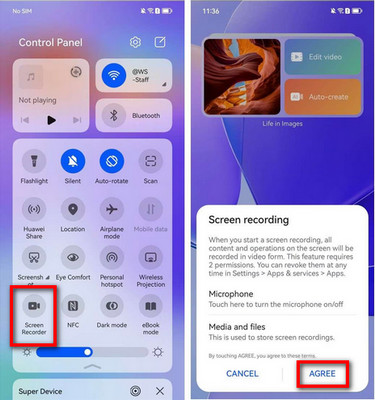
Step 5. Once done, the YouTube Live video saves to Photos/Gallery in MP4 format.
2.2 How to Use XRecorder to Capture YouTube Live on Android
- XRecorder is free to use, but it contains ads in the free version, and it also uses more of your phone's resources. It's highly recommended to use FlixiCam to record YouTube videos on computer, then transfer the records to your Android with ease - this will save mobile data and device space.
Note:
Step 1. Download and install XRecorder from the Google Play Store, and open it.
Step 2. Open YouTube and start playing the live stream.
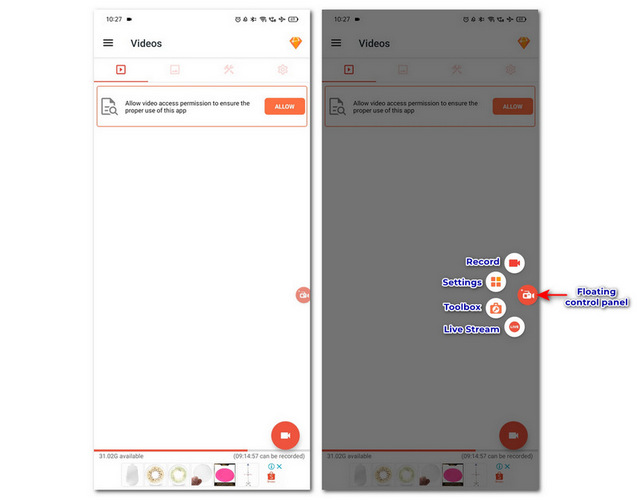
Step 3. Tap the floating XRecorder button that appears on your screen.
Step 4. Press the Record button to start capturing your YouTube streams.
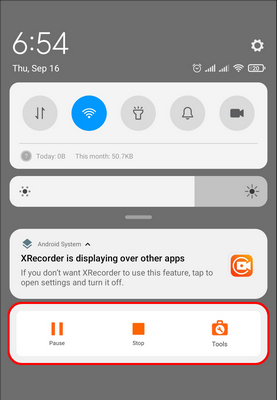
Step 5. Tap Stop when you're done. The recorded YouTube video will be saved in the XRecorder gallery.
2.3 How to Use AZ Screen Recorder to Record YouTube Live on Android Freely
- There are many ads on this AZ Screen Recorder app. If you are not mind on this, you can have a try.
Note:
Step 1. Download and install AZ Screen Recorder from the Google Play Store.
Step 2. Start playing live stream on YouTube.
Step 3. Tap the floating AZ Screen Recorder button that appears on your screen. And press Record. Let the live stream play while the app records.
Part 3. Free Record YouTube Live Stream on iPhone
It's easy to record YouTube Live videos on iPhone with the built-in screen recorder on iOS device. All recorded YouTube streams will be saved as video files in your Photos app.
Step‑by‑Step to Capture YouTube Live Stream on iPhone
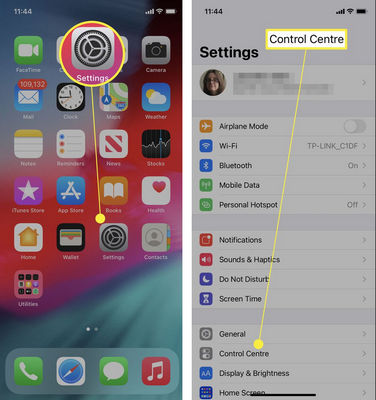
Step 1. On iPhone, go to Settings > Control Center.
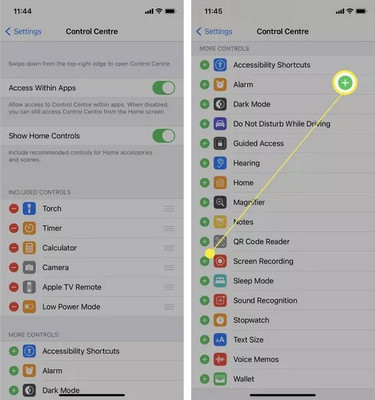
Step 2. Tap the + button next to Screen Recording to add this shortcut to your iPhone Control Center.
Step 3. Start streaming YouTube Live on the app.
Step 4. Swipe down from the top‑right corner of your screen to open Control Center, then the white Record button (a circle icon). After a 3‑second countdown, the recording begins.
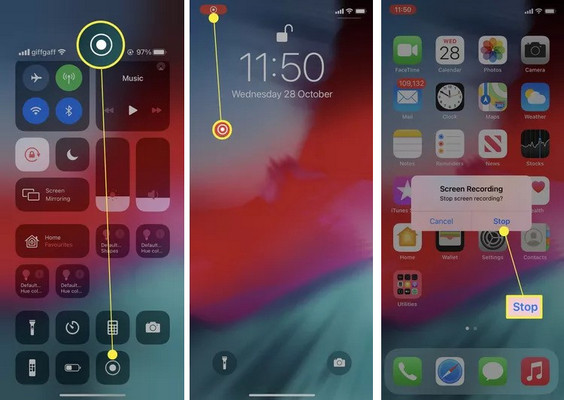
Step 5. When the YouTube live stream ends, tap the red status bar at the top of your screen and choose Stop. The records will be saved on iPhone's Photos app as .mp4 files.
Part 4. Record YouTube Live Stream Online Free
There are various webpage screen recorders available to capture live video on the YouTube page (or tab), then download the MP4 files to your computer. They are convenient to use, no need to install any extra software. But the thing is, such YouTube recorder online tools always chew CPU‑RAM and may lag or crash if your browser is busy.
It's still suggested to use a desktop tool like FlixiCam YouTube Live Recorder to better output with high video resolution, audio, and perfect file‑system handling.
 DOWNLOAD WIN
 DOWNLOAD MAC
How to Save YouTube Live Stream Online Free
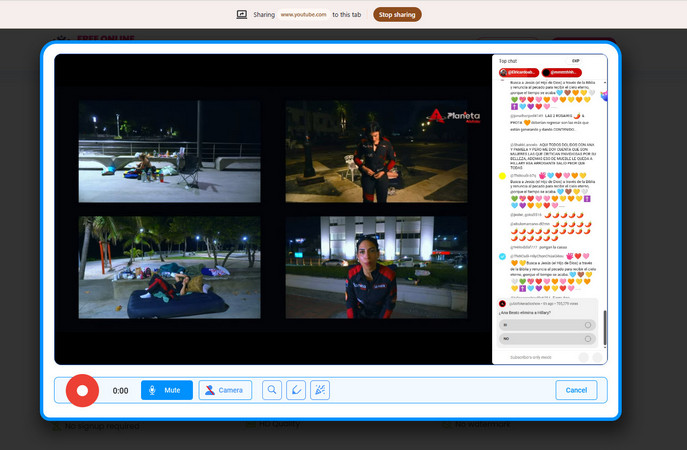
Step 1. Open online free webpage recorder on webpage like screen-recorder.com or Apowersoft free online screen recorder
Step 2. Click Start Recording. Your browser will ask for permission to access your screen, microphone, and so on. Go ahead and allow it.
Step 3. Open a new tab in your browser, go to the YouTube live stream page, and start playing the video.
Step 4. In the online recorder, pick the YouTube Live streaming Tab. Also make sure audio is turned on so you capture the live stream's sound. Then Record.
FAQs to Record YouTube Live Stream
Q: Will I get black screens when recording YouTube Stream?
Yes, sometimes you might get a black screen while grabbing YouTube Live Streams. It depends on when:
- You are capturing encrypted YouTube videos (and services like YouTube TV).
- You have selected an incorrect capture source.
- Your device doesn't allow screen recording, and you have no permission.
If you want to download the entire YouTube library, or also record YouTube Live, YouTube movies, or YouTube TV, it's a good idea to use this All-In-One streaming video recorder, which supports downloading MP4s from YouTube, and 1000+ streaming video sites.
DOWNLOAD WIN
DOWNLOAD MAC
Q: YouTube Live Stream is buffering when recording, how to avoid?
When a YouTube live stream keeps pausing to load while you're recording, it's usually because your internet connection can't handle playing and recording at the same time. Here's how to solve:
- For smooth recording, you should have at least 10–15 Mbps of stable download speed.
- Try switching to an Ethernet cable instead of Wi-Fi.
- Close an extra browser tab, game, or background app you're not using.
- Temporarily drop the YouTube stream quality - for example, from 1080p or 4K down to 720p.
Q: Can I record a private YouTube Live stream?
Yes. You can technically record a private YouTube live stream as long as you have access to it - you were invited, or you have the link.
Q: Does YouTube automatically record my live stream after it's finished?
Yes. YouTube automatically saves your live stream as a regular video after it ends, as long as your broadcast is under 12 hours.
But if your stream goes over 12 hours, YouTube might not save it at all. So if you're planning a marathon stream, it's a good idea to record a backup copy yourself.
Q: How long are auto-archived live streams saved on YouTube?
Indefinitely. Unlike platforms like Twitch, which delete saved streams after 14 to 60 days, YouTube treats your archived live stream just like any other uploaded video.
You can also change who can see your recorded live stream (Public, Unlisted, or Private) at any time in YouTube Studio.
Q: How can I download a live stream video that has been auto-archived?
You can download your own archived streams directly from YouTube Studio:
Step 1. Log in to YouTube Studio.
Step 2. Click Content on the left sidebar, then select the Live tab.
Step 3. Find your stream, hover over it, and click the three vertical dots (Options).
Step 4. Select Download.
Q: What video quality can I download my YouTube live stream in?
Download from YouTube Studio: YouTube usually limits recorded live downloads to 720p (HD), even if you streamed in 1080p or 4K. This is a common issue.
Third-Party Downloader (like FlixiCam): To get the original quality, like 1080p or 4K, you'll need to use a tool like FlixiCam 4K Video Downloader. This tool can grab the highest resolution available from the public watch page.
The End
This article walks you through several ways to record YouTube live streams, whether you're using a laptop, a mobile device, or an online tool. If you want to record YouTube Live in high quality, try using FlixiCam desktop tool, for smooth recording experience and high quality output.

The Best Tool to Convert YouTube Music
Want to enjoy your YouTube Music for offline playback? TuneMobie Music Converter is definitely worth a try. This tool can convert music from 17+ platforms (Spotify, Apple Music, YouTube Music, Amazon Music, etc.) to universal formats (MP3, M4A, FLAC, etc.) with original sound quality and complete ID3 tags kept. Learn More >>
📢 Disclaimer
All tutorials here are for personal entertainment & education only. Please ensure you have a valid legal account on the relevant platforms. We do not support commercial distribution or piracy — always respect content creators' copyrights.
Ashley Wood | Senior Writer
![How to Record Netflix Videos [PC, Mac, Linux, iOS, Android]](/img/blog/record-netflix-video.jpg)