Top 7 Free Methods to Download YouTube Subtitles
 Ashley Wood
- 5 September, 2026
- Blog
YouTube subtitles are great for offline study, transcription and language learning. But if you've ever tried to download captions from YouTube, you'll see there's no simple "downlad" button on YouTube's official site.
After testing dozens of solutions, I’ve summarized the following four best methods to download YouTube subtitles for free. Let's dive into the methods so you can pick what works best for you!
You May Be Interested: Best Free 10 YouTube Downloaders
🤔 What's the Best Subtitle Format for YouTube Downloads?
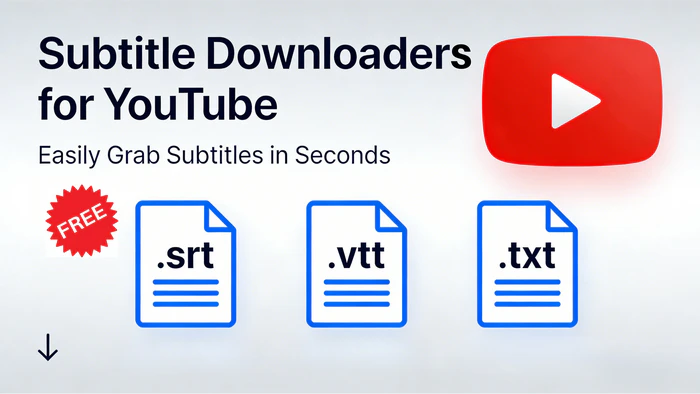
Every subtitle format has its own specific use, so picking the right one depends on your use case:
Works with almost all media players (VLC, QuickTime, Windows Media Player) and video editing software (Premiere Pro, iMovie), ideal for offline viewing or basic editing.
Web-friendly design (works with Chrome, Firefox, Safari) — embed it on blogs, websites, and social videos. Supports basic styling like bold and italic.
No timecodes — just raw transcript text. Perfect for copying quotes, studying, or pasting into notes apps.
In short, for most YouTube subtitle downloads, SRT is the best choice — it works with nearly all video players. If you need captions for websites or social media, choose VTT. For simple reading or note-taking, TXT is the easiest option.
📋 Comparison Table of YouTube Subtitle Downloaders
| Tool Name | Tool Type | Supported Formats | Playlist Download | Bilingual Subtitles |
|---|---|---|---|---|
| 👍Flixicam YouTube Downloader | Desktop | SRT, VTT, TXT | ✅ | ✅ |
| YouTube Subtitle Downloader Extension | Browser Extension | SRT, VTT, TXT | ✘ | ✘ |
| DownSub | Online | SRT, TXT | ✘ | ✘ |
| NoteGPT | Online | SRT, TXT | ✅ | ✘ |
| DownloadYouTubeSubtitles.com | Online | SRT, VTT, TXT | ✘ | ✘ |
| Noiz.io | Online | SRT, TXT | ✘ | ✘ |
| YouTube Built-in Transcript | Built-in (YouTube) | TXT | ✘ | ✘ |
1. FlixiCam YouTube Video & Subtitle Downloader 
FlixiCam YouTube Downloader is a free desktop tool designed to download videos and subtitles from YouTube. It works with common subtitle types, like SRT, VTT and TXT, so you can use YouTube captions on any video player or editing app.
What sets it apart is no subtitle delay — the captions always match the YouTube video perfectly. It lets you download YouTube playlists at once and turn on dual subtitles to learn a new language easily. You can also download YouTube videos in 8K quality as MP4 or MKV formats to watch offline! Best of all, it's 100% free — one tool for all your needs!
What Make FlixiCam the Top Choice:
- Download YouTube subtitles as separate SRT/VTT files.
- Download videos from over 1000 sites including YouTube, Netflix, Amazon Prime, HBO Max, Disney+, Hulu, Peacock and more in MP4/MKV format.
- Built-in YouTube web player for direct search & playback.
- Keep YouTube downloads forever for offline access.
- Support batch download YouTube videos & subtitles in 5x speed.
- Transfer YouTube downloads to any devices.
- Comes with multilingual captions support for flexible viewing.
Compatibility: Windows 10/11, macOS 11 and above.
✅ Pros
- 100% free to use (no hidden fees/trials).
- Batch/playlist subtitle downloads.
- Dual/bilingual captions.
- Support 8K ultra-HD video download.
🔴 Cons
- Require installation on desktop.
- Rely on original captions.
Tutorial: How to Download YouTube Subtitle via FlixiCam YouTube Downloader
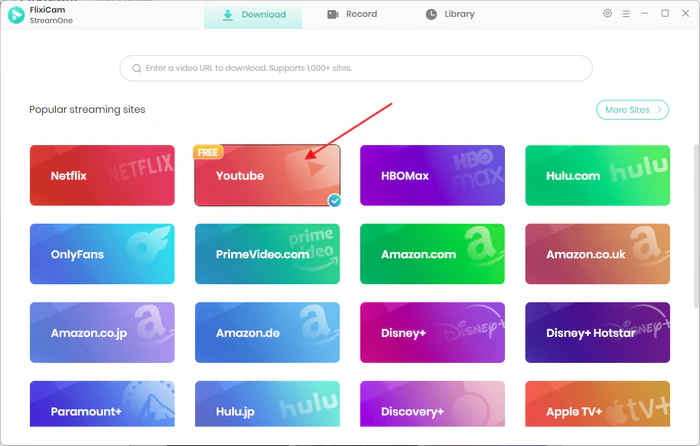
Step 1: Install and launch Flixicam YouTube Downloader. Choose YouTube as the download site. You can log into your YouTube account, and browse content in the built-in YouTube browser.
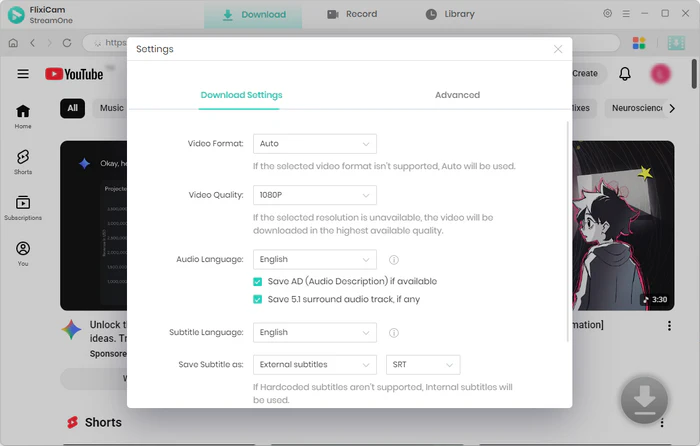
Step 2: Click the gear icon at the top-right corner to open the General settings. Customize subtitle language, external subtitles (SRT), and more settings.
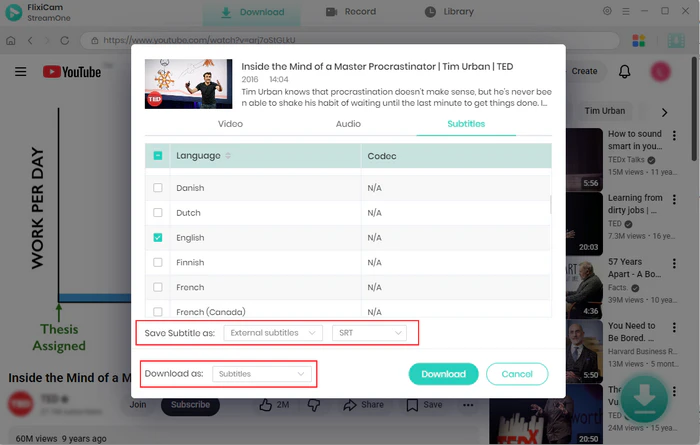
Step 3: Hit on the video and click the "Download" button in the bottom right corner. Tap Advanced Settings, change Download as video to subtitles. Click the Download button to save YouTube subtitles as SRT/VTT format.
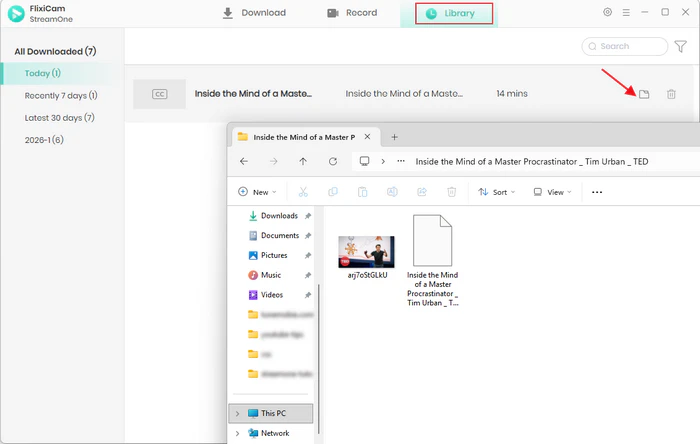
Step 4: Once complete, go to library tab to find the SRT/VTT files. To locate the files on your laptop, simply click the folder icon. It will directly open the output folder you set earlier.
2. YouTube Subtitle Downloader Extension
Browser extensions are ideal if you need to download subtitles from YouTube in seconds, free and designed for instant access. This Chrome extension makes downloading YouTube captions super quick and simple — you don't have to switch tabs or copy URLs. It's perfect for anyone who wants subtitles without messing with complicated settings.
✅ Pros
- One-click download, no URL copying.
- Works with YouTube Shorts.
- Free to use.
🔴 Cons
- Only supports Chrome (no Firefox/Safari).
- May break after YouTube updates.
Tutorial: How to Download YouTube Subtitle via Extension
Step 1: Install YouTube Subtitle Downloader Extension from the Chrome Web Store.
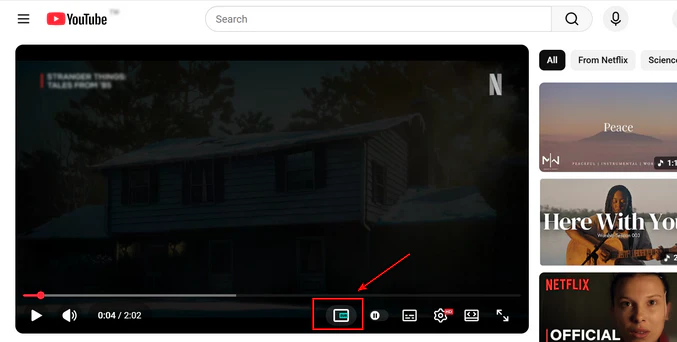
Step 2: Open any YouTube video, locate the green SUB icon below the video progress bar and click it.
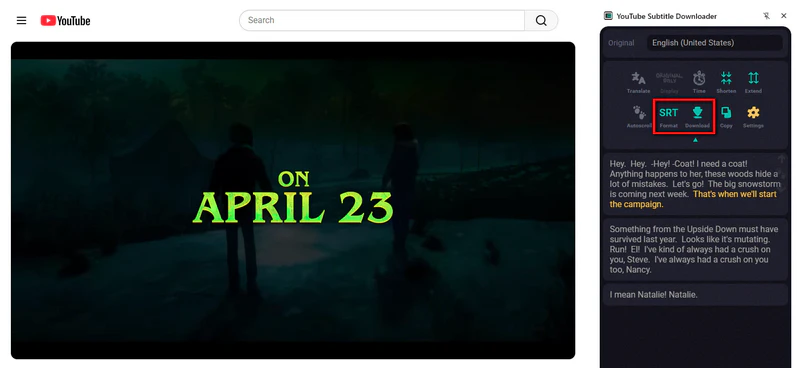
Step 3: The extension will automatically analyze the video's subtitles and display them in the right sidebar of the video.
Step 4: Select your desired format (SRT, VTT or TXT) and language, click "Download", and the file will download automatically to your device.
3. Online YouTube Subtitle Download Tools
Online YouTube subtitle download tools are great for users who don't want to install software or extensions — they work on any device (desktop, mobile, tablet) and require only a YouTube URL.
3.1 DownSub YouTube Subtitle Downloader
DownSub is a free web-based YouTube subtitle downloader, and you don't need to install any software or create an account. It works on phones, tablets, and computers, and supports popular subtitle formats like SRT and TXT. Besides YouTube, you can also download captions from other platforms including VIU, Viki, Vlive and more.
✅ Pros
- No installation or sign-up.
- Mobile-friendly interface.
- Multi-platform subtitle downloads.
🔴 Cons
- Aggressive pop-up ads.
- No batch/playlist support.
- No VTT subtitle format.
Tutorial: How to Download YouTube Subtitle via DownSub
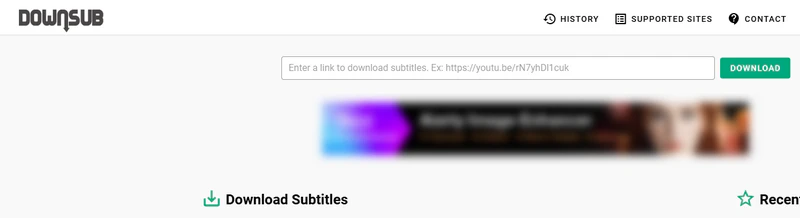
Step 1: Go to DownSub's website.
Step 2: Copy the YouTube video URL (from the address bar or "Share" menu) and paste it into the input box.
Step 3: Click "Download", then select your preferred subtitle format (SRT/TXT) and language from available captions.
Step 4: Click the "Download" button next to your choice, and the file will save to your device.
3.2 NoteGPT YouTube Subtitle Downloader
NoteGPT YouTube Subtitle Downloader uses AI to make downloading YouTube subtitles more accurate. Unlike other tools that just copy captions, it fixes typos, corrects mistakes, and makes the text easier to read, great for YouTube videos with heavy accents, tricky words, or unclear audio. It's free with no limits, perfect for anyone who needs clear, correct captions.
✅ Pros
- AI-enhanced accuracy for auto-generated captions.
- Support batch/playlist downloads.
- Free to use.
🔴 Cons
- No VTT format support.
- Doesn't work with some region-locked videos.
Tutorial: How to Download YouTube Subtitle via NoteGPT
Step 1: Go to NoteGPT's YouTube Subtitle Downloader page.
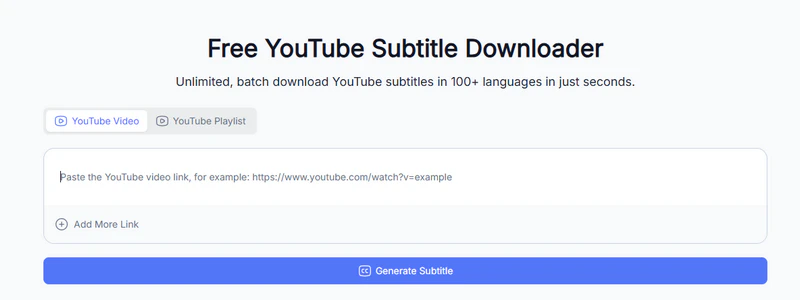
Step 2: Paste the YouTube URL into the input field and click "Generate Subtitle".
Step 3: Wait for the AI to process the captions, then select your subtitle format (SRT or TXT).
Step 4: Click "Download" to save the enhanced YouTube subtitle file.
📍Want to download YouTube subtitles to pair with your videos? Try FlixiCam YouTube Subtitle & Video Downloader with one click! 👇
 DOWNLOAD WIN FOR FREE
 DOWNLOAD MAC FOR FREE
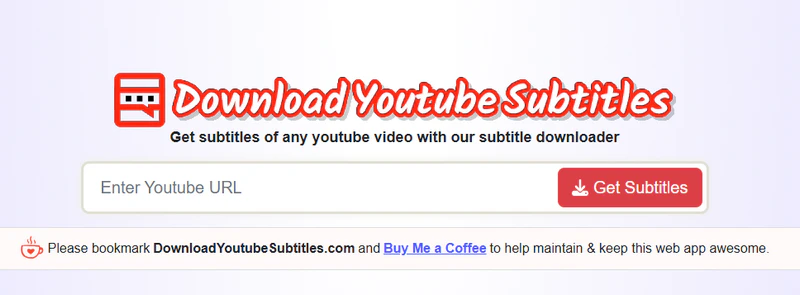
3.3 DownloadYouTubeSubtitles.com
DownloadYouTubeSubtitles.com is an easy-to-use tool for downloading YouTube captions for free. It works on phones, tablets, and computers, so you can get subtitles anywhere. It supports 10+ common languages like English, Spanish, French, German, and Mandarin. No ads, no pop-ups, and no hidden fees — great for anyone who needs subtitles quickly.
✅ Pros
- Mobile-friendly (works on phones/tablets).
- No ads or pop-ups.
- Multi-language options (10+ common languages).
🔴 Cons
- No VTT format support.
- No batch downloads.
- Fail to detect captions for some niche videos.
Tutorial: How to Download YouTube Subtitle via DownloadYouTubeSubtitles.com
Step 1: Visit www.downloadyoutubesubtitles.com.
Step 2: Paste the YouTube URL into the provided box and click "Get Subtitles".
Step 3: Select your language from the dropdown menu.
Step 4: Choose your format (SRT, VTT or TXT) and click "Download Subtitle".
3.4 Noiz.io YouTube Subtitle Downloader
Noiz.io is a free online YouTube subtitle downloader that works in your browser — no software or extension to install. It's great for downloading YouTube captions in lots of different languages, with support for over 40 languages including Arabic, Korean, and Portuguese, perfect for anyone needing captions for non-English YouTube videos. You can download subtitles in common formats like SRT and TXT, so the files work on most video players and devices.
✅ Pros
- Free to use, no sign-up required.
- Supports 40+ languages.
- Clean interface with no pop-up ads.
🔴 Cons
- No batch/playlist subtitle downloads.
- Free version has slow processing for long videos.
- Does not support VTT subtitle format.
Tutorial: How to Download YouTube Subtitle via DownloadYouTubeSubtitles.com
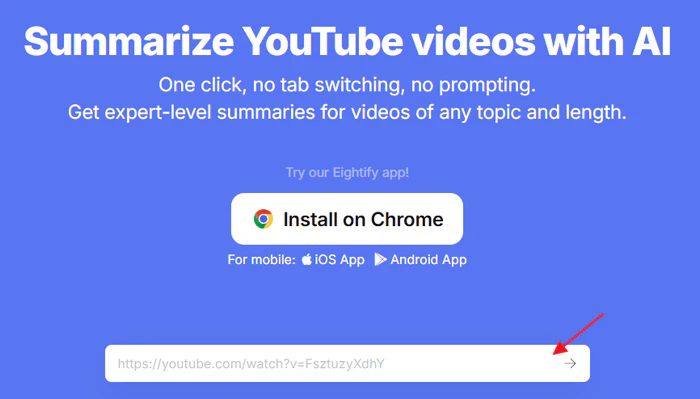
Step 1: Go to Noiz.io's free subtitle tool page (www.noiz.io).
Step 2: Copy the YouTube video URL and paste it into the box on the page.
Step 3: Pick your desired language and subtitle format (SRT/TXT) from the drop-down menus.
Step 4: Click the arrow button, and your YouTube subtitle file will save to your device right away.
4. YouTube Built-in Transcript & Subtitle Download
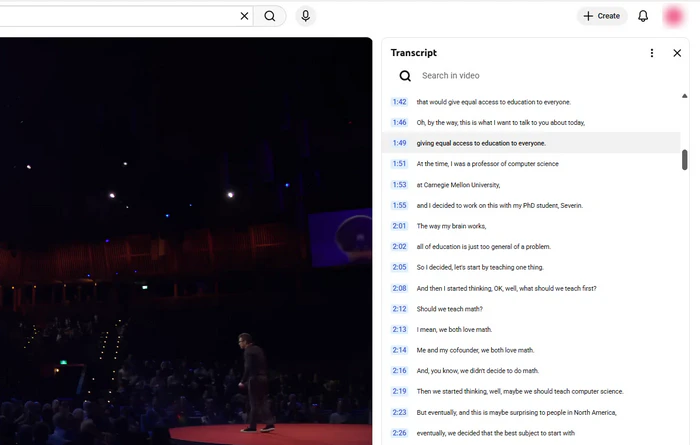
YouTube's own transcript tool is a free way to download youtube subtitle — no other apps or websites needed. You can find it right on the YouTube video page, copy the text and save it as a TXT file for notes, studying, or quoting. It uses the original captions from the video creator or YouTube's AI. It only gives you the text (no timing info), but it's perfect for quick, simple needs.
✅ Pros
- No third-party tools/extensions.
- Official captions with high accuracy.
🔴 Cons
- No timecodes (not synced with video).
- Requires manual formatting for SRT/VTT.
- Doesn't support auto-generated captions for some videos.
Tutorial: How to Download YouTube Subtitle with Built-in Transcript
Step 1: Visit YouTube official website, and open the YouTube video you want to extract subtitles.
Step 2: Below the video player, click "More" to expand the video description.
Step 3: Scroll to the bottom of the expanded description and click "Show transcript".
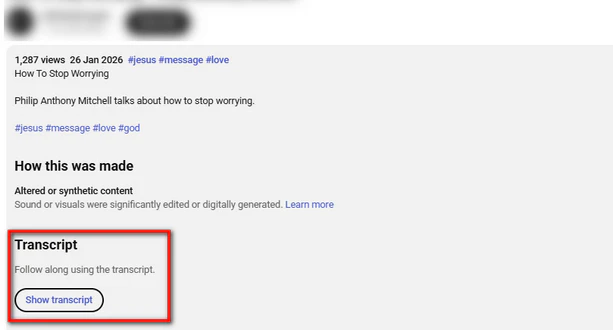
Step 4: A transcript panel will pop up on the right side. Choose your language from the dropdown menu if available.
Step 5: Select, copy and paste the transcript into a text editor (e.g., Notepad, Google Docs), then save as a TXT file.
FAQs About YouTube Subtitle Download
1. Is it legal to download subtitles from YouTube?
Yes — for personal use. YouTube's Terms of Service don't prohibit downloading subtitles, as long as you don't redistribute them commercially. If you're a content creator, always credit the original video owner if you use their subtitles.
2. Can I download bilingual captions from YouTube?
If you're using an online tool, most don't support dual downloads — you'll need to download each language separately and merge them with a subtitle merging tool. For easier use, opt for Flixicam: it lets you download multiple languages directly, and it's faster than manual merging.
Grab Flixicam to download bilingual captions from YouTube! 👇
3. Can I download subtitles for YouTube Shorts?
Absolutely. Flixicam, DownSub, and Noiz.io all support downloading subtitles for YouTube Shorts. Just copy the YouTube Shorts URL and follow the same steps — YouTube captions will be ready in seconds.
4. Why can't I download subtitles for some YouTube videos?
If the YouTube subtitle downloader shows the error, here are three common reasons:
- No captions on the video: Many creators skip adding captions, and auto-generated ones may be off (common for short videos). Check the YouTube "CC" icon — if grayed out, no captions exist.
- Uploader disabled captions: Creators can restrict subtitles in YouTube Studio.
- Region restrictions: Captions may be blocked in your region even if the video is viewable.
📥 Choose the Right Tool for Your Needs
If you're a casual user who needs a one-time YouTube caption download, an online tool or extension works. But if you want speed and extra features (like video downloads or subtitle editing), Flixicam YouTube Downloader is the best choice. Grab your tool, and make full use of all YouTube videos with subtitles!

The Best Tool to Convert YouTube Music
Want to enjoy your YouTube Music for offline playback? TuneMobie Music Converter is definitely worth a try. This tool can convert music from 17+ platforms (Spotify, Apple Music, YouTube Music, Amazon Music, etc.) to universal formats (MP3, M4A, FLAC, etc.) with original sound quality and complete ID3 tags kept. Learn More >>
📢 Disclaimer
All tutorials here are for personal entertainment & education only. Please ensure you have a valid legal account on the relevant platforms. We do not support commercial distribution or piracy — always respect content creators' copyrights.
Ashley Wood | Senior Writer