F.A.Q (Netflix Video Downloader)
Please click the  icon or the "
 " icon (on the upper right) > Register. There will be a registration popup dialog, where you can copy and paste the registration email and license code.
Generally, once an order has been validated, the license key will be sent to the email address you entered for the purchase shortly. If you do not receive the license key within a few minutes of purchasing, please check your Spam or Promotion E-mail folder just in case it was incorrectly classified as spam or promotion email. Sometimes the arrival of this registration e-mail can be delayed, due to delays caused by internet or system glitches, email typo, etc. In this case, please contact us for assistance.
- Please make sure that the installed program matches the product and version you purchased.
- Please check that the registration code exactly matches the code you received in your purchase confirmation email. Make sure there are no extra spaces or incorrect characters.
- One registration code can only be used on one device at a time. If the code has already been activated on another device, please log out of or deactivate the previous device before trying to activate it on your current device.
- If the issue persists after trying the above solutions, please contact us for further assistance.
FlixiCam are able to help you download any movies and TV shows from Netflix to computer for offline playback.
MP4 and MKV. FlixiCam is able to download Netflix video to MP4 or MKV format so that you can enjoy them on most of devices freely.
The free trial version enables you to download the first 5 mins of each video in HD quality. To get the full video, please purchase a license.
Please contact our support team with the order IDs. We will refund you as soon as possible.
Please contact us via support@flixicam.com to get a discount.
1. FlixiCam provides free trial version, allowing you to download the first 5 mins of each video in HD quality. To get the full video, please purchase a license.
2. Netflix has four subscription plans: Basic with Ads, Basic, Standard and Premium. The first two plans support watching in HD (720P), Standard plan supports watching in Full HD (1080P), and Premium plan supports watching in Ultra HD (4K). Please note that FlixiCam doesn't support to get 1080P video while working with Netflix’s Basic and Basic with Ads plan.
3. Please make sure Netflix plays video in HD quality. First, you need to adjust the Netflix playback setting to High: sign into Netflix.com, and select your profile. Under My Profile, select Playback Settings, then find Data Usage, and select High.
If you have done the above setting, but the downloaded video's quality is still poor (at around 480P), please follow these steps to check the original video's quality: Open Netflix web player on Chrome browser, and play the video. Click "Ctrl" + "Alt" + "Shift" + "D" on the keyboard at the same time, then some details of the video will pop up, where you can check the video's resolution.
4. Netflix provides merely 480P quality for videos from Disney and Marvel on Chrome Web player. So currently, FlixiCam does not support downloading those videos at HD quality.
Please right click the program icon, and choose "Run as administrator" in the drop down list to launch the program. Administrator permission required If you are prompted for an administrator password or confirmation, type the password or provide confirmation. Then the program will be launched. Please input your registration email and code to the registration box.
FlixiCam offers three kinds of subtitles encoding ways to meet users' needs for playing video on different media players or devices. The mode "External subtitles" will help you save subtitles as separate files.
"Internal subtitles" will make the subtitles be built into the output video, which will allow you to save multiple languages subtitles and switch as needed while playing the video on some players like VLC Media player.
If your media players or devices don't have the ability to switch or add subtitles, "Hardcode subtitles" is a great option to help you make the subtitles be burned onto your video. But please note that you can save subtitles in only one language to the video at a time with this mode.
FlixiCam supports hardware acceleration with Intel/NVIDIA/AMD graphics cards, which will enable you to run the program more smoothly and speed up the download process. However, to achieve or take full advantage of hardware acceleration, you are required to have the latest version of the graphics cards installed on your computer, or FlixiCam might work as slowly as a snail does. Here is how to check and upgrade the graphics cards:
1. The process of upgrading graphics cards is incredibly easy, all you need to do is: right-click the Windows Start menu and choose "Device Manager", find "Display adapters", right-click your graphics card and select "Update driver" in the drop-down list.
2. Sometimes driver upgrades might end in failure. No worries, you can also install the latest graphics driver from your graphics card manufacturer's website: Intel / NVIDIA / AMD (choose the exact one according to your computer). After upgrading your graphics driver, please reboot your computer to activate it.
To help us identify and resolve the issue more efficiently, please open the program and click the Menu icon in the upper right corner, then select Feedback.
Please provide the following information in your feedback:
- A detailed description of the issue, including what happened, what troubleshooting steps you have already tried, and the results.
- Screenshots or a video showing the issue, if available.
- The URL of the video you were trying to download or process.
- Log files, which can be found by clicking the Menu icon in the upper right corner > Open Log File.
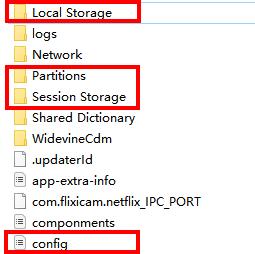
- Login cache files. Please send the relevant files located in the same folder as the log files. As these files may be large, we recommend compressing them into a ZIP file and sharing them through a file transfer service. You can use Buzzheavier to upload and share the ZIP file with us.