 DOWNLOAD Win
 DOWNLOAD Mac
How to Watch Netflix on Nintendo Switch
 Ashley Wood
- 5 September, 2026
- Blog
The Nintendo Switch's portability and bright screen make it perfect for streaming - but it's such a letdown that Netflix still isn't available on the eShop. If you want to switch from gaming to binge-watching without grabbing another device, this guide helps you out!
We'll walk you through all the ways to watch Netflix on Nintendo Switch, plus the safest method to download Netflix videos for offline playback on your console. Let's dive in!
1. Is Netflix Officially on Nintendo Switch?
First, it's important to note that there's no official way to stream Netflix on the Nintendo Switch. Unlike PlayStation or Xbox consoles, Nintendo has always focused more on gameplay than on streaming capabilities.
But don't worry – if you still want to watch Netflix on your Nintendo Switch, there are a few ways to do it. Let's walk you through them.
2. The Safest Way to Watch Netflix on Nintendo Switch: Flixicam Netflix Downloader👍
For a safe, hassle-free way to enjoy Netflix on your Nintendo Switch or any device - no Netflix app required - FlixiCam Netflix Downloader stands out as the top choice. This simple yet professional tool lets you download Netflix movies, TV shows, and originals directly to your Windows PC or Mac as MP4 or MKV files. Whether you're traveling by plane or spending time in a remote area, FlixiCam ensures your favorite Netflix videos are always accessible for on-the-go viewing.
What Make FlixiCam the Top Choice:
- Built-in Netflix web player for direct search & playback.
- Saves HD video (up to 1080 p) in MP4 or MKV universal format.
- Stores downloads locally without expiration for permanent access.
- Support batch download Netflix videos in 10x speed.
- Enables playback of downloaded Netflix videos on any device.
- Comes with multilingual subtitles support for flexible viewing.
- Ad-free Netflix downloads (Basic/ad-supported plans included).
Compatibility: Windows 10/11, macOS 11 and above.
📍 If you're looking for a tool to download any streaming video (including Netflix, Disney+, Amazon Prime Video, Hulu, HBO Max, Paramount+, Peacock, Apple TV+ …) to MP4, Flixicam Stream One is the top pick.
Tutorial: How to Use Flixicam to Watch Netflix on Nintendo Switch
Step 1.Run FlixiCam on a PC and Log into Netflix Account
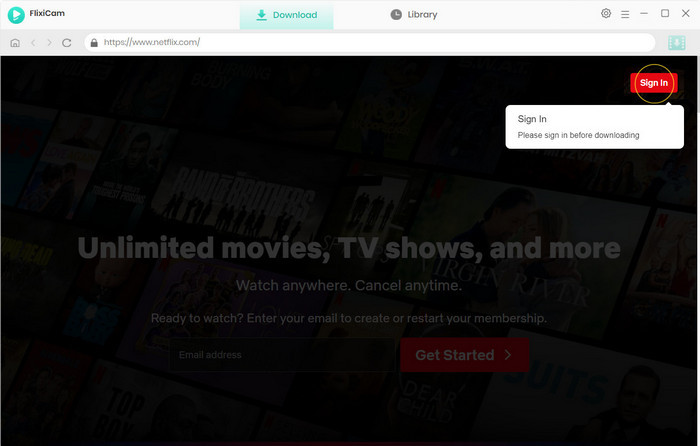
It is recommended to download FlixiCam before downloading Netflix titles with it. After launching FlixiCam on your computer, tap on "Sign In" to log into your Netflix account.
Step 2.Customize the Output Settings
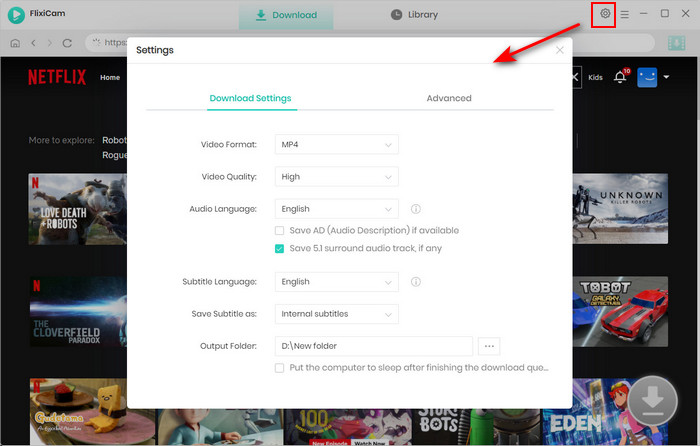
Please click the gear icon in the top-right corner to access the General settings and select output parameters. MP4 or MKV format can be chosen for the output format. You can also choose the video quality (High, Medium, Low), output folder, and languages of audio tracks and subtitles. You can set the output path to the USB drive in this step.
Step 3.Add Videos on FlixiCam
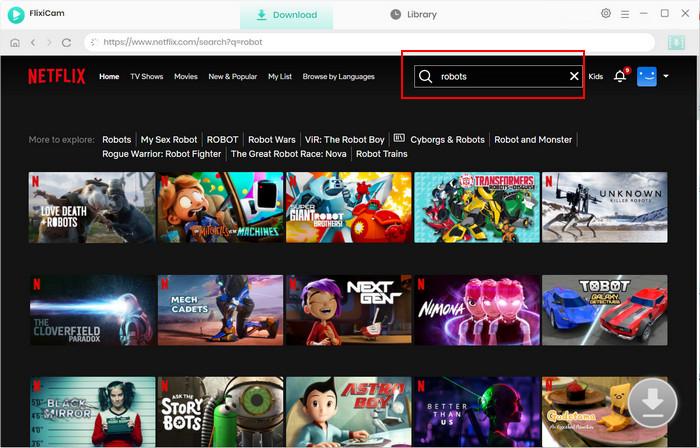
To find the videos you want to download, you can directly enter the video's name in the search box on FlixiCam. The results will soon be listed.
Step 4.Select Audio Track and Subtitle
You can customize the audio and subtitle tracks here. To download a TV show, directly click on the green Download icon, and you can choose the seasons and titles first. Then you can click the "Advanced Download" at the bottom left. A window will pop up, allowing you to select the show's title, seasons, and audio track.
To download a Netflix movie, simply click the green Download icon, and you can customize the output parameters.
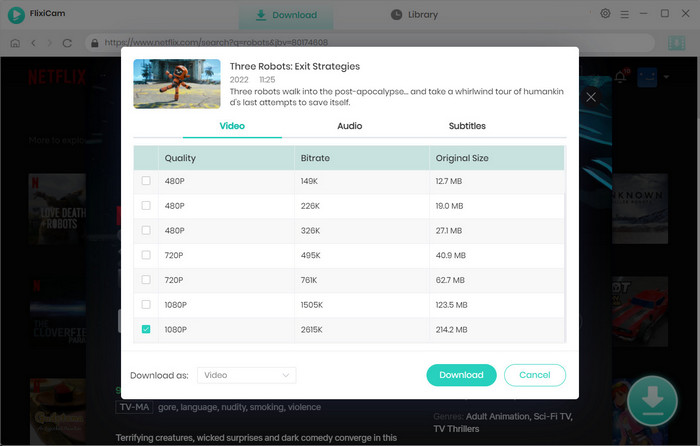
Step 5.Start to Download Netflix Videos
Just click the download button after finishing the settings. Once the Netflix video download is complete, you can access it locally by choosing Library or by looking in the destination folder.
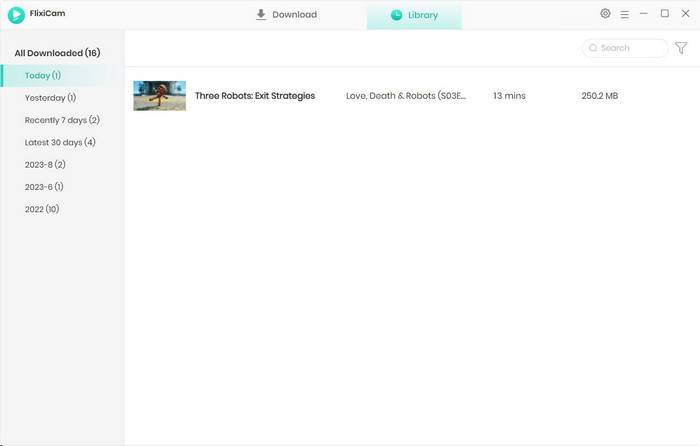
Step 6.Transfer Netflix Downloads to Your Nintendo Switch
Once downloaded, transfer the Netflix MP4 files to your Switch in three simple ways:
- MicroSD Card Transfer: Insert a microSD card into your computer, copy the downloaded Netflix MP4s to the card, then insert the card into your Switch. Use a free media player app like VLC for Switch to open and watch the MP4 files.
- Wireless Transfer: Upload the MP4s to a private Google Drive folder, trigger the Switch's hidden browser via a Wi-Fi login page, and access the files for streaming.
- Upload to YouTube: Create a private YouTube playlist, upload the downloaded Netflix MP4s to it, and then download YouTube from the Nintendo eShop, log in to your account, and stream the private YouTube playlist. Check out the YouTube video tutorial below for a step-by-step guide:
Key Benefits of Using Flixicam for Netflix on Nintendo Switch
🟢 100% Safe & Secure
No system changes, no account bans, no hardware risks - fully protects your Nintendo Switch and Netflix account while you watch Netflix on Nintendo Switch.
🟢 Watch Netflix Offline Anywhere
Enjoy Netflix on Nintendo Switch anywhere even without Wi-Fi. Perfect for travel, commutes, or areas with spotty internet.
🟢 High Quality & Full Netflix Features
Download Netflix in 1080p HD, retain full audio tracks and multi-language subtitles, and enjoy ad-free playback even with a basic Netflix plan.
🟢 Watch Netflix on Any Device
Downloaded Netflix MP4s work on your Switch, phone, tablet, smart TV, or laptop for flexible viewing across devices.
3. Alternative Ways to Watch Netflix on Nintendo Switch
📍 Note: Both alternative methods come with certain risks. They may lead to Nintendo account/console bans or voided warranties. Proceed only if you fully accept these risks.
3.1 Install Android on Nintendo Switch to Access Netflix
This method transforms your Switch into an Android device, giving you access to the Google Play Store to download the official Netflix app.
Step-by-Step Guide to Install Android on Nintendo Switch to Access Netflix
- Go to ismyswitchpatched.com and enter your Switch's serial number. Confirm that your console is unhacked (serial prefixes XAW1-XAW7 are compatible).
- Prepare a microSD card, USB-C cable, Windows PC, and 3 core files (Hekate bootloader, Switchroot Android ROM, GApps).
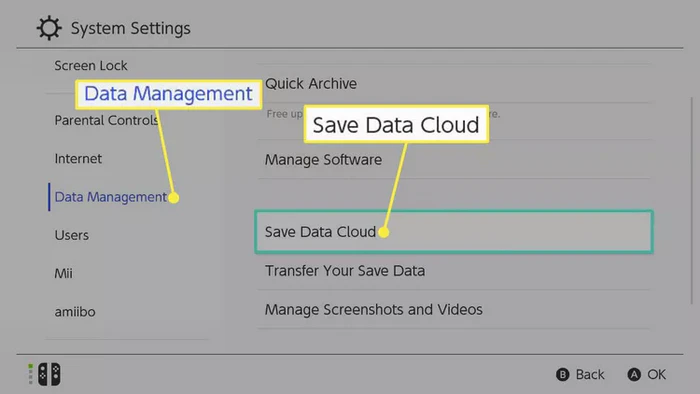
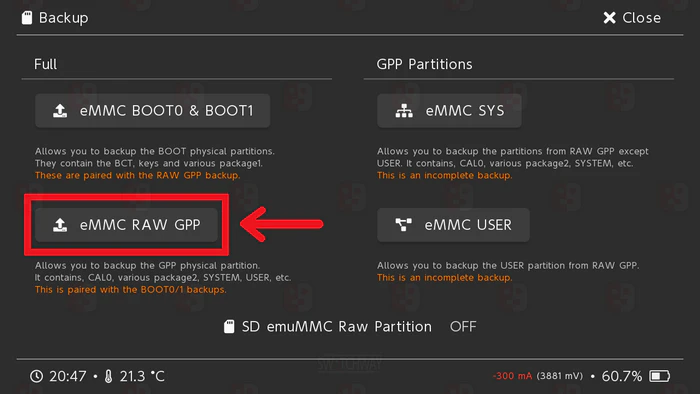
- Save the backup to your PC in case you need to restore your Switch. Save game data to Nintendo Cloud (Settings > Data Management > Save Data Cloud). Insert SD card into Switch, boot to Hekate (hold Volume Up + Power). Go to "Tools" > "Backup eMMC" > "Backup eMMC Raw GPP", then save the backup to your PC.
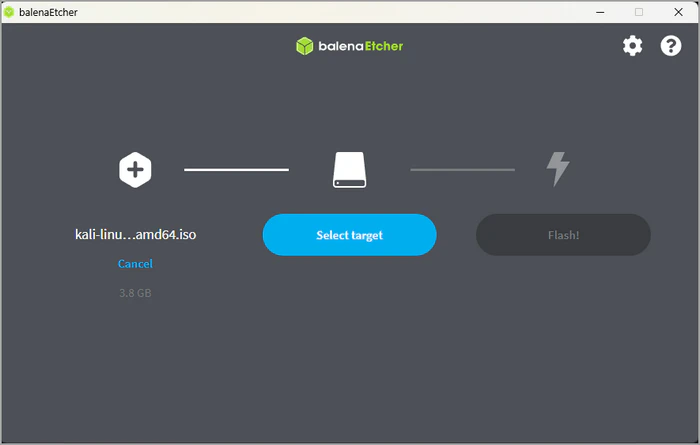
- Insert the SD card into your PC. Use balenaEtcher to flash the Android ROM (follow on-screen prompts; it auto-formats the card). Copy Hekate files and GApps zip to the SD card's root folder.
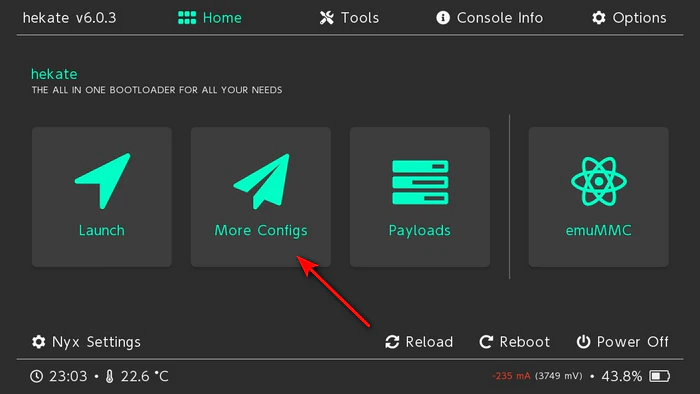
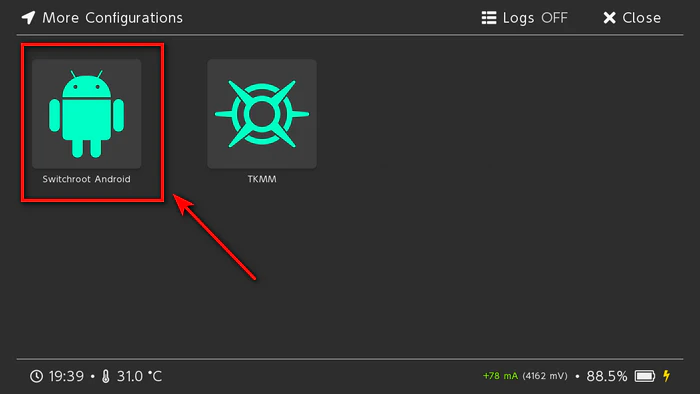
- Power off Switch; insert RCM jig into right Joy-Con rail. Hold Volume Up + Power to enter RCM mode, then connect to PC via USB-C. Open TegraRcmGUI, select Hekate payload and inject it. In Hekate menu, go to "More Configs" > "Switchroot Android".
- Wait 5-10 minutes for first boot. Complete the setup wizard, open Google Play Store, search for "Netflix" and download it. Log into your Netflix account, you can now watch Netflix on Nintendo Switch.
Pros
- Access full Netflix with real-time streaming.
- Use Android to get Disney+, Hulu, social media and more.
Cons
- Risk permanent Nintendo ban.
- Chance of bricking your Switch from setup errors.
- Void Nintendo warranty for modified consoles.
- Possible Android lag & Netflix playback glitches.
3.2 Remote Streaming Netflix from PC to Nintendo Switch
Remote streaming casts Netflix from your PC to your Switch in real time, using the Switch as a secondary screen.
Step-by-Step Guide to Remote Streaming Netflix from PC to Nintendo Switch
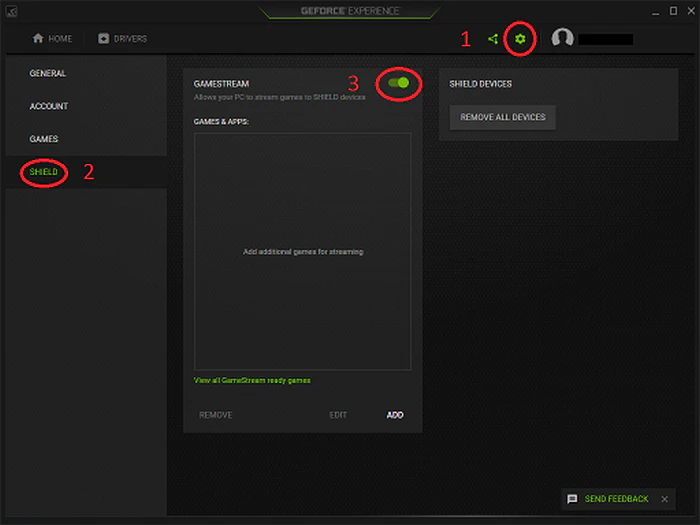
- Install GeForce Experience from NVIDIA's official site, log in with your NVIDIA account, and enable "GAMESTREAM" in settings. Add your web browser to GAMESTREAM: click "Add" > select your browser executable > save it to the list.
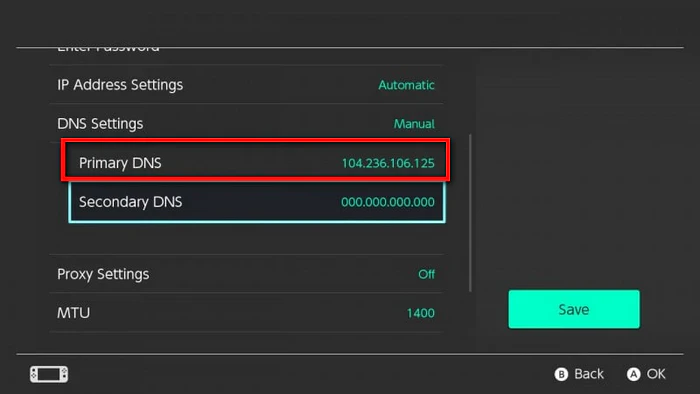
- Insert a microSD card into Switch, then connect Switch to PC via USB-C. Download the latest Homebrew Launcher, copy it to the SD card's root folder. Eject and reinsert the SD card into Switch. Power on Switch, go to "System Settings" > "Internet" > "Internet Settings", select your Wi-Fi, and set DNS to 104.236.106.125.
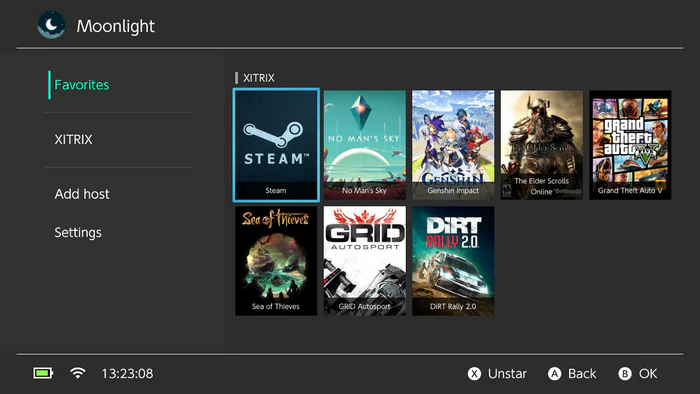
- Download the latest Moonlight-Switch .nro file from GitHub. Create a "switch" folder on the microSD card, copy the .nro file into it. Reinsert the SD card - Moonlight will appear in Homebrew Launcher.
- Ensure Switch and PC are on the same Wi-Fi. Launch Homebrew Launcher (via Album) on Switch, then open Moonlight. Select your PC from the auto-detected list. Enter the 4-digit code shown on Switch into the GeForce Experience prompt on PC to pair.
- On Switch's Moonlight menu, choose "Desktop" or your browser. On PC, open netflix.com in the paired browser, log in, and select the desired show/movie.
Pros
- No Switch changes.
- Watch Netflix instantly without downloading.
- Stream video services or PC games to your Switch.
Cons
- Risks Nintendo detection and potential bans.
- Needs fast stable Wi-Fi.
- Requires technical knowledge for GAMESTREAM setup and pairing.
- Clunky Netflix navigation with Switch controller.
4. Alternatives to Netflix for Switch Users
Don't want to use the above methods? The Nintendo eShop has official streaming apps for safe, convenient video watching. They aren't Netflix, but they get the job done!
YouTube - The Most Widely Used Choice
YouTube offers endless free videos on Switch from vlogs and music to gaming clips and movies. It works in docked or handheld mode.
Crunchyroll - A Must for Anime Fans
Crunchyroll is the ultimate anime destination on Switch, with the largest library of legal simulcasts, classics, and exclusives - many available in HD with multiple subtitles.
Niconico - Great for Interactive Japanese Picks
Niconico brings Japanese pop culture and interactive fun to Switch, with anime, gaming streams, and its famous "danmaku" real-time comment feature. Much of the videos includes English subtitles, ideal for fans of Japanese media.
Final Thoughts
While Nintendo doesn't officially support watching Netflix on the Switch, several methods are still available. Compared to other options, FlixiCam avoids console bans, preserves 1080p HD quality, and simplifies the entire process, making it the top choice for Switch users who want to combine gaming and streaming.
📢 Disclaimer
All tutorials here are for personal entertainment & education only. Please ensure you have a valid legal account on the relevant platforms. We do not support commercial distribution or piracy — always respect content creators' copyrights.
Ashley Wood | Senior Writer