2026 Guide: 4 Easy Ways to Download Netflix Movies on Mac
 Ashley Wood
- 4 September, 2026
- Blog
Quick Answer: Best Way to Download Netflix on Mac
- Best quality & permanent files: Use FlixiCam — downloads Netflix in 1080p as MP4/MKV with no expiry, ideal for long-term offline viewing.
- Free method: Try screen recording — works on any Mac, but requires real-time recording and more manual effort.
- No install: Use mirroring — stream downloads from your iPhone/iPad to Mac, best for quick viewing only.
Want to watch your favorite Netflix shows offline on your Mac? iPhones and iPads get one-tap downloads, but Mac has no app and no browser save button, so you’re stuck streaming, This guide shows the real tricks to download Netflix movies on your Mac and keep them forever, so you can hit play anywhere, anytime.
You May Be Interested: Download Netflix Movies on Laptop (2026 Guide)
- Method 1: Download Movies in Netflix on Mac with Flixicam👍
- Method 2: Stream Netflix from iPhone/iPad to Mac via Mirroring
- Method 3: Using PlayCover to Run Netflix App on Mac
- Method 4: Screen Recording
- Method 5: Download Netflix Movies on Mac with Android Simulator
- Method 6: Download Netflix Movies on Mac with iPhone & iPad Apps
Comparison of Netflix Download Methods for Mac
To help you quickly pick the right option for your needs, here's a comparison of the four methods so you can make an informed choice at a glance.
| Feature | 👍 FlixiCam | Mirroring | PlayCover | Screen Recorder | Android Emulator | iPhone & iPad Apps |
| Direct Mac File Saving | ✅ | ❌ | ✅ | ✅ | ✅ | ✅ |
| Output Quality | 1080p (MP4/MKV) | ❌ | 720p | 720p | Up to 720p | Up to 1080p |
| Audio/Subtitles | Multi-language | Original | Original | Original | Original | Original |
| Download Speed | 10x Batch Speed | ❌ | 1x Speed | Real-time | 1x Speed | 1x Speed |
| Expiry Rule | No Expiry | ❌ | 30d (Unwatched); 48h (Watched) |
No Expiry | 30d (Unwatched); 48h (Watched) |
30d (Unwatched); 48h (Watched) |
| Mac Compatibility | Intel & Apple Silicon | Intel & Apple Silicon | Apple Silicon Only | Intel & Apple Silicon | Intel & Apple Silicon | Apple Silicon Only |
| Netflix Restrictions | No | Yes | Yes | No | Yes | Yes |
| Stability | High | Medium | Medium | Medium | Low | Medium-Low |
Compared to other methods, Flixicam offers more stable performance:
- Downloads Netflix shows straight to the Mac.
- Skips malware risk and delivers clear 1080p picture.
- Offers 10x batch speed and retains multi-language audio/subtitles.
- Keep Netflix downloads forever, no ads, no expiry.
- Gets fresh fixes often, steadier than emulators and recorders.
 Download Win
 Download Mac
Below, we'll explore 4 common ways to help you download movies in Netflix on Mac.
Method 1: Download Movies in Netflix on Mac with Flixicam
Since there's no official Netflix app for macOS, the easiest and safest workaround is to use third-party downloaders. These tools let you download your favorite Netflix movies directly to your MacBook for offline viewing. You can keep the videos forever and play them on other devices anytime.
FlixiCam is a professional Netflix video downloader designed for Windows laptop and Mac users. It lets you download any Netflix movies and TV shows without installing the official Netflix app, supports 1080p high-quality downloads in MP4 or MKV format, enables 10x-speed batch downloading, and retains multi-language audio tracks and subtitles.
What Make FlixiCam the Top Choice:
- Built-in Netflix web player for direct search & playback.
- Download Netflix movies on MacBook/MacBook Air/MacBook Pro (up to 1080 p) in MP4 or MKV format.
- Keep Netflix downloads forever — even if you cancel Netflix subscription.
- Support batch download Netflix videos in 10x speed.
- Transfer Netflix downloads to any device for flexible viewing.
- Keep multiple language tracks and subtitle options.
- Ad-free Netflix downloads (Basic/ad-supported plans included).
Compatibility: Windows 10/11, macOS 11 and above.
📍 If you're looking for a tool to download any streaming video (including Netflix, Disney+, Amazon Prime Video, Hulu, HBO Max, Paramount+, Peacock, Apple TV+ …) to MP4, Flixicam Stream One is the top pick.
Tutorial: How to Download Movies in Netflix on Mac with FlixiCam
Step 1: Run FlixiCam on Mac
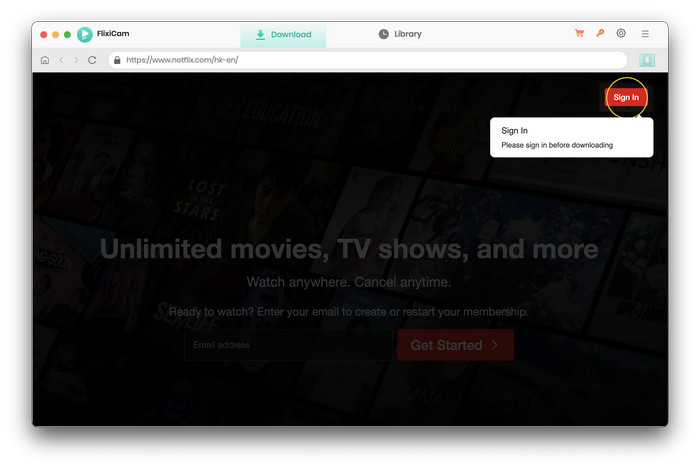
First of all, you need to log into your Netflix account. Please try to enter any word or video's name in the search box, then there will be a pop-up window prompting you to log in Netflix account.
Step 2: Customize Netflix Download Settings
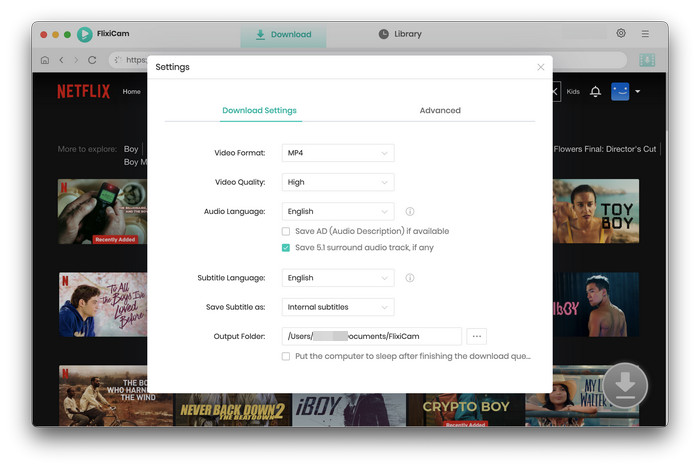
Now you can customize the download settings by hitting the Setting button on the upper right corner. The setting window will pop up, from where you can customize the output format (MP4 or MKV), output quality, output path, audio and subtitles language, etc.
Step 3: Search Netflix Titles on FlixiCam
Please enter the name of movies & TV shows or copy and paste the link of videos from Netflix Web Player to FlixiCam, and then click the little magnifier icon, followed that the program will list the video or all of the related video.
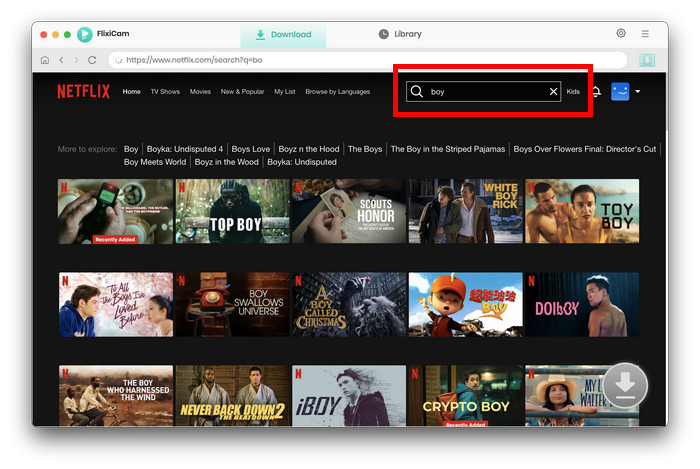
Step 4: Select Netflix Audio Track and Subtitle
FlixiCam's advanced download settings allow you to select the audio track and subtitle as needed. If you are trying to download a TV show, simply click the Download icon, followed that a window will pop up allowing you to select titles as well as seasons.
Choose audio track and subtitles by clicking "Advanced Download" in the bottom left corner. If you try to download a movie, please click the Advanced Download icon next to the Download icon to access the window.
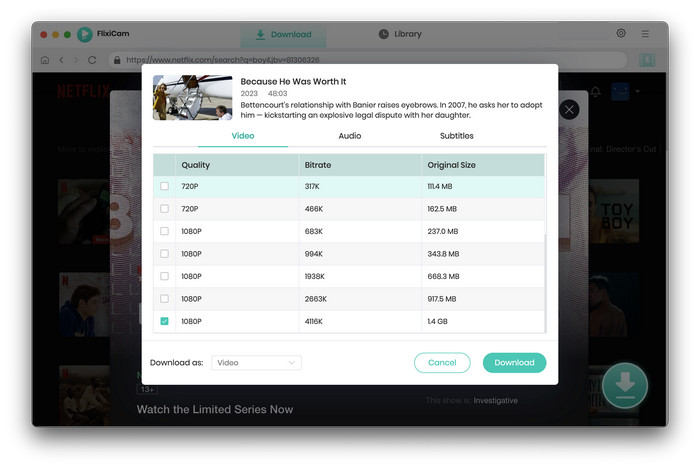
Step 5: Start to Download Netflix Movies on Mac
The final step is to tap on the Download button to start downloading the Netflix videos to the output folder you've chosen in the previous step. After downloading, you can click on Library to find the well-downloaded Netflix videos on local drive. Now you can store the downloaded videos on your computer and enjoy them anytime anywhere.
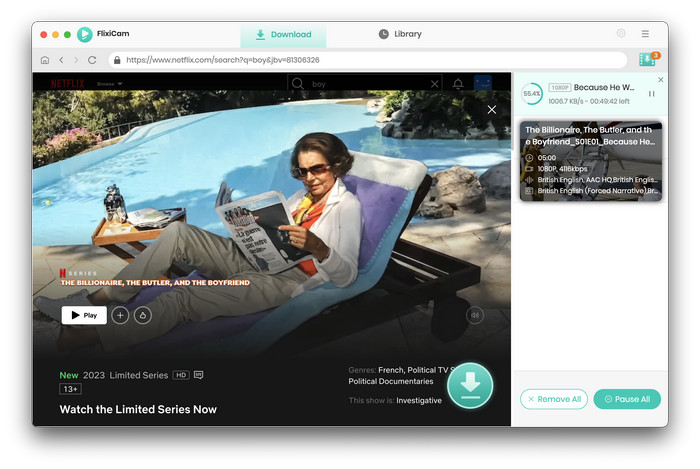
Method 2: Stream Netflix from iPhone/iPad to Mac via Mirroring
If you own an iPhone or iPad, you can download Netflix on your mobile device first, then stream it to your Mac using screen mirroring. This method is for casual viewing but fails if you want to download Netflix directly on your Mac or use it without your iPhone or iPad.
Pros
- Free if you already own an iPhone or iPad.
- Every Netflix title on your phone or tablet can pop up on the big screen.
- No extra software on your Mac.
Cons
- Does not save any video files directly to your Mac.
- Your phone must stay on and near the Mac the whole time.
- If the phone turns off, the show stops right away.
- Netflix may block you from recording.
Tutorial: Stream Netflix from iPhone/iPad to Mac via Mirroring
- Open the App Store on your iPhone/iPad, download the Netflix app, log in, and download the movies or shows you want (go to My Netflix > Downloads > See What You Can Download).
- Ensure your Mac and iOS device are on the same Wi-Fi network and signed in with the same Apple ID. For macOS Sequoia and iOS 18+, use the built-in Mirroring app. For older versions, use third-party tools like AirServer or Reflector.
- Open the Netflix app on your iPhone/iPad, play the downloaded videos, and mirror your screen to your Mac.
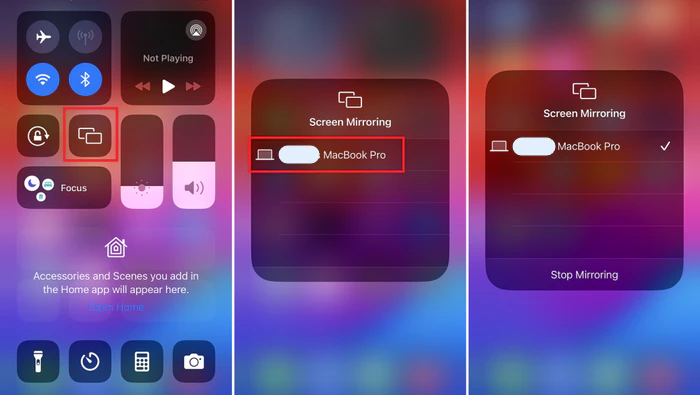
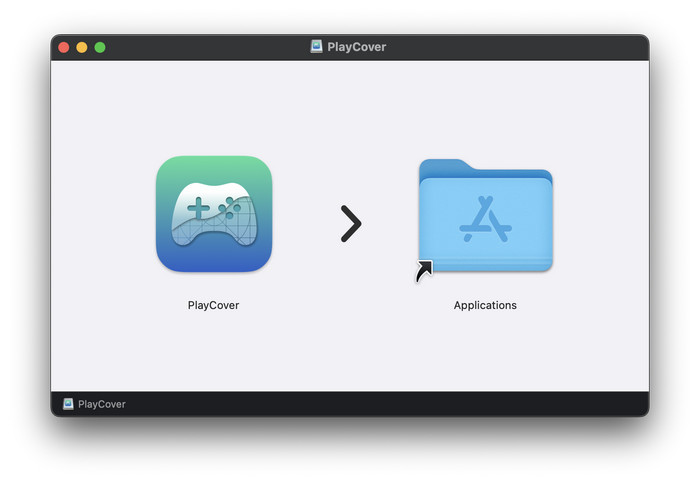
Method 3: Using PlayCover to Run Netflix App
Emulators let you run mobile apps on your Mac, so you can install the Netflix iOS app and use its download feature. Tools like PlayCover (for iOS) are popular choices — compatible with M-series Macs running macOS 12.0 or later. Emulators are a middle ground, but they're not reliable for long-term use and frequent downloading.
Pros
- Download Netflix without ap on your Mac.
- Free if you already have the IPA.
Cons
- Bad IPA files can put viruses on your Mac.
- After a macOS update the app may start crashing.
- Netflix locks may make the video look blurry.
- Emulators may slow your Mac down.
Tutorial: Run Netflix App on Mac Using PlayCover
- Download PlayCover from the official website and install it on your Mac.
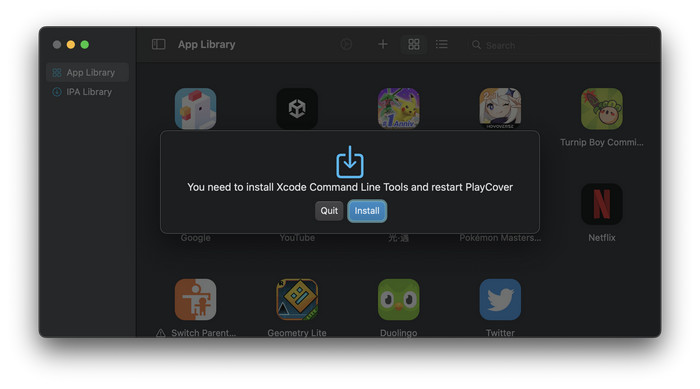
- When you first run the app, you may be prompted to install Xcode Command Line Tools. Follow the prompts to complete the installation, and authenticate with Touch ID as needed.
- Next, go to Decrypt or ARM Converter, and download a decrypted IPA file for the Netflix iOS app.
- Drag and drop the decrypted Netflix IPA file into the PlayCover window, or use the "Add app" button to select the .ipa file in Finder and add Netflix to your PlayCover library.
- Open the Netflix app and start streaming on your Mac.

Method 4: Screen Recording Netflix
Screen recording is a simple way to capture Netflix videos as you stream them, letting you save Netflix episodes or movies for offline viewing on your device. You can use built-in tools like Netflix Screen Recorder or third-party screen.
Pros
- Free to use.
- Works on all Mac and Windows devices.
- Supports capturing any Netflix video you can stream.
Cons
- Time-consuming — you must watch the entire video in real time.
Tutorial: Screen Recording Netflix Using Netflix Screen Recorder
Please follow the steps below to record on Netflix:
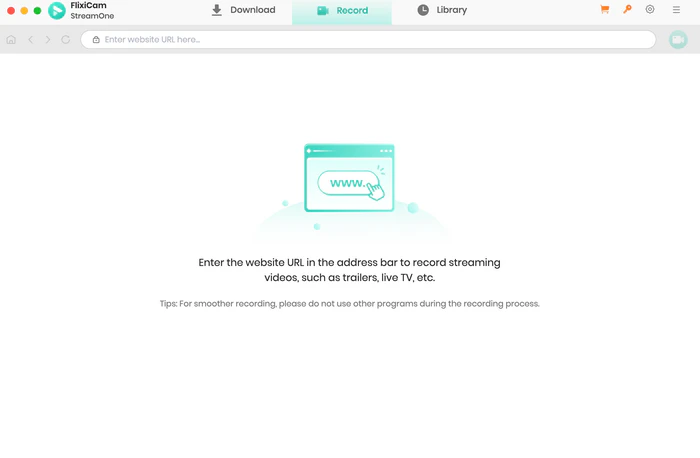
- Open Netflix Screen Recorder, and click "Record" on the top area.
- Copy the Netflix URL from the browser, and paste it into the URL bar. The Netflix Video will display in the built-in player Netflix Screen Recorder.
- Click "Record entire page", then a setting window will pop up for you to select the output quality and countdown timer.
- After choosing the settings you want, just click "Start Recording" to start recording on Netflix.
- To stop recording Netflix streaming, just tap the red "Stop Recording" icon, and the Netflix video file will be kept on your computer. When the recording is finished, you can find the Netflix downloads in the Library tab.
Method 5: Download Netflix Movies on Mac with Android Simulator
Since Netflix doesn’t officially support downloads on macOS, an Android emulator lets you run the Netflix mobile app on your Mac and access the download feature. However, this method may not always work smoothly. Performance varies by device, and Netflix download limits, such as expiration and device restrictions, still apply.
Pros
- Download Netflix movies and TV shows on a Mac using the Android Netflix app.
- Original video and audio quality are generally preserved.
- No need to switch to another device.
Cons
- Resource-intensive and may run slowly on some Macs.
- Download quality may be limited depending on the emulator and Netflix settings.
- Still subject to Netflix’s official download restrictions.
- May stop working after Netflix app updates or device detection changes.
Tutorial: Download Netflix on a Mac Using Android Simulator
Follow the steps below to download Netflix movies on a Mac using an Android emulator.
- Download and install an Android emulator for Mac, such as BlueStacks. You can also choose other Android simulators, as the setup process is generally similar.
- Launch the emulator and sign in to Google Play using your Google account.
- Search for the Netflix app in the Google Play Store, then download and install it. Open Netflix and sign in to your account.
- Browse Netflix and find the movie or TV show you want to save. Click the download button to start downloading content to watch offline.
Method 6: Download Netflix Movies on Mac with iPhone & iPad Apps
If you use an Apple Silicon Mac (M1, M2, M3, or M4), there’s another workaround worth trying. Some iPhone and iPad apps can run directly on macOS, which may allow you to access the Netflix mobile experience on your Mac. However, Netflix does not officially support downloads on macOS, and this method may not always work depending on app availability and system compatibility.
Pros
- No Android emulator required.
- Familiar Netflix mobile interface.
- May work directly on Apple Silicon Macs (M1/M2/M3).
Cons
- Only works on Apple Silicon Macs.
- Netflix may block installation or download access.
- Still subject to Netflix’s official download restrictions.
- May stop working after Netflix app or macOS updates.
Tutorial: Download Netflix on a Mac Using iPhone & iPad Apps
Follow the steps below to try using the Netflix iOS app on your Mac.
- Make sure your Mac uses Apple Silicon (M1, M2, or newer).
- Open the Mac App Store and search for Netflix. Switch to the “iPhone & iPad Apps” tab if available.
- Download and install the Netflix app, then sign in to your Netflix account.
- If the download feature is available, browse Netflix and save movies or TV shows for offline viewing.
FAQs About Downloading Netflix on Mac
1. Why does mirroring occasionally block me from recording Netflix?
Netflix's built-in protection will detect and block video playback. To fix this, switch to Flixicam — it downloads high-quality Netflix directly to your Mac.
2. Can I avoid ads with Flixicam if I have Netflix's Basic (ad-supported) plan?
Yes! Flixicam provides ad-free downloads even for Netflix's Basic/ad-supported subscription plans.
3. Can I transfer Netflix downloaded files to other devices?
Yes! Since Flixicam save Netflix shows to Mac in MP4 and MKV format, you can transfer your Netflix downloads to any device, such as your iPhone, iPad, Android device, USB drive, or any other media player.
4. Is Flixicam compatible with all macOS versions?
Flixicam works with macOS 11 and above (including macOS 26); older versions are not supported.
Final Thoughts
Mac doesn't have an official way to download Netflix shows, but mirroring, PlayCover, and screen recording are easy fixes — though each has problems: no local saves, safety risks, or bad video quality. If you want to skip these issues, Flixicam is perfect: it lets you download Netflix directly to your Mac so you can keep them forever.
📢 Disclaimer
All tutorials here are for personal entertainment & education only. Please ensure you have a valid legal account on the relevant platforms. We do not support commercial distribution or piracy — always respect content creators' copyrights.
Ashley Wood | Senior Writer