Troubleshooting Netflix Not Working on Roku (2026)
 Ashley Wood
- 7 January, 2026
- Blog
Netflix not working on Roku? One second you're ready to binge-watch, the next your TV's stuck on a black screen, spinning endlessly, or the app crashes right back to the home screen. It's annoying and it always hits right when you finally have time to chill. Worse still, sometimes the Wi-Fi looks fine, the remote still clicks, but Netflix simply refuses to cooperate.
Don't worry. This guide walks you through the quickest common fixes and simplifies how to watch Netflix on Roku for offline playback -- so buffering, outages, or "sorry, this title is not available" messages never ruin movie night again!
1. Netflix's Common Issues on Roku
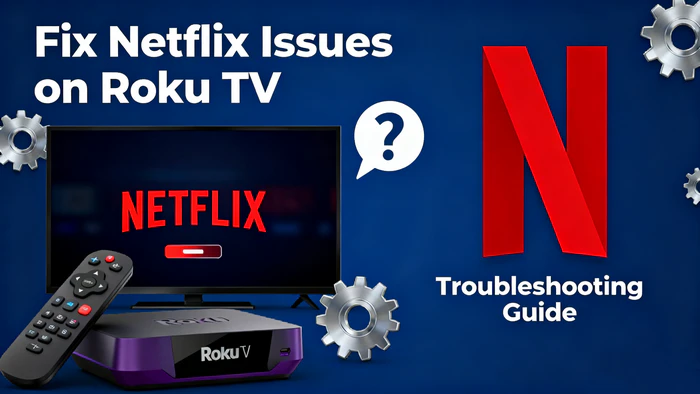
Below is a list of all potential problems you may encounter when Netflix fails to function properly on Roku devices:
Common Issues of Netflix Not Working on Roku:
- Netflix Black Screen on Roku
- Netflix App Not Loading on Roku
- Netflix App Crashing or Freezing on Roku
- Netflix App Disappeared from Roku
- Netflix Not Connecting to Internet on Roku
- Netflix Won't Play Specific Content on Roku
If you're facing any of the above issues, go ahead to find some reliable solutions to get Netflix running smoothly on your Roku again!
Below are 8 proven fixes to address these common problems:
2. 8 Proven Fixes to Netflix Problems on Roku
Solution 1: Check Internet Connection
A strong, stable network is key for Netflix on Roku. Here's how to check and fix it.
Check Wi-Fi signal strength
- Go to Roku's Settings > Network to see signal bars (more bars = stronger signal).
- Weak signal (1-2 bars) causes loading issues. Move Roku closer to your router to avoid obstacles like walls or appliances.
Test network speed
- Use Speedtest.net on a device connected to the same network.
- Recommended speeds: 5 Mbps (SD), 25 Mbps (HD), 30+ Mbps (UHD).
- For slow speeds, restart your router or contact your ISP.
Restart Your Wi-Fi Router:
- Unplug your Wi-Fi router's power cord and wait 30 seconds.
- Plug the power cord back in securely.
- Wait 2-3 minutes for the router to fully boot up.
Solution 2: Restart Roku and Netflix
Restarting your Roku and reinstalling Netflix is a simple first fix for most issues. It clears temporary glitches and corrupted files.
- Unplug your Roku's power cable, wait 30 seconds, then plug it back in and let it fully boot up.
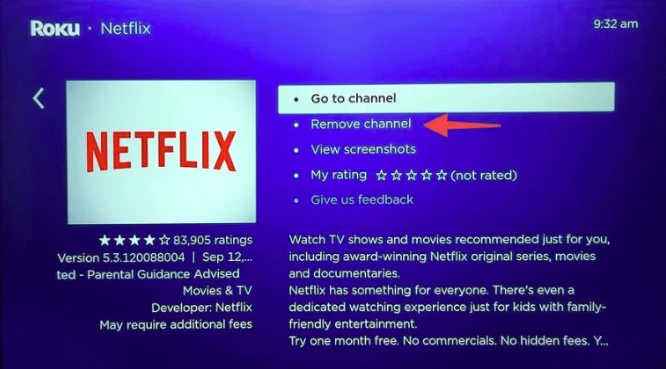
- On your Roku remote, press Home > go to Netflix > press the Options button (star/three lines) > select Remove channel.
- Reinstall Netflix from the Roku Channel Store to get a fresh version.
Solution 3: Reset Netflix App
Sometimes a reset is required for Netflix to behave correctly. Here's how to conduct a reset using your Roku remote:
- Open Netflix on your Roku device.
- Use your remote to go to the App Info section.
- Select Reset, and follow the prompts to complete the process.
Solution 4: Update Roku and Netflix
Keeping your Roku system and Netflix app updated is key for smooth use. Updates fix bugs, boost performance, and improve compatibility.
Update Roku system
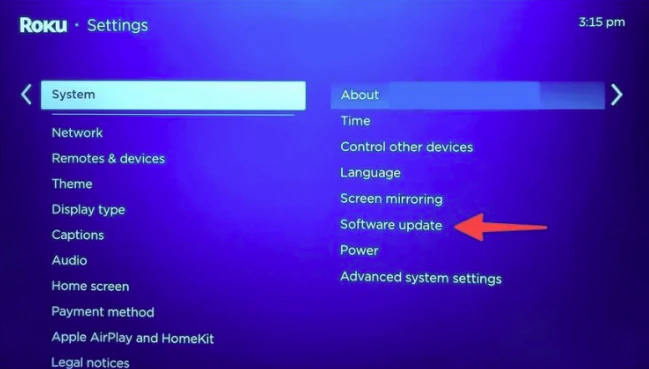
- Go to Settings > System > System update.
- Tap Check now, then follow on-screen steps to download and install updates. Keep Roku connected to power and stable network during the process; it will restart automatically when done.
Update Netflix app
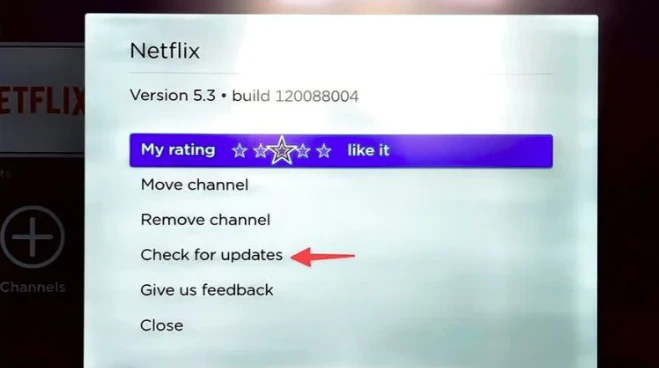
- On Roku home screen, find Netflix > press Options button > Check for updates.
- For auto-updates: Go to Settings > System > Automatic updates > turn on Update apps automatically.
Solution 5: Netflix Account Restrictions
Check for Netflix account restrictions, such as account suspension or login issues, which may prevent streaming on Roku. Verify your account status and ensure your subscription is active.
Solution 6: Factory Reset the Roku Device
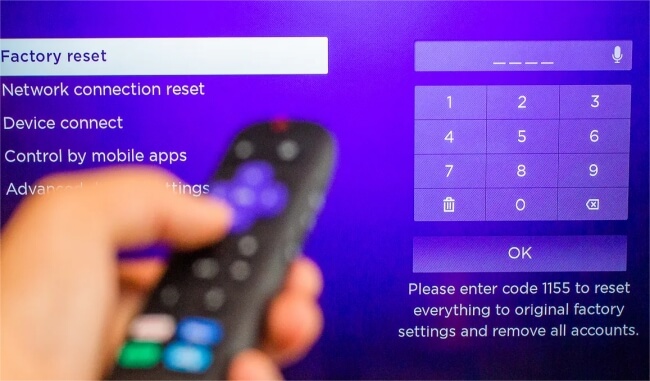
A factory reset will erase all data and settings and offer a clean slate for all applications. Before proceeding, ensure you back up any necessary data or settings. Go to Settings > System > Advanced system settings > Factory reset and follow the instructions.
Solution 7: Contact Roku Support or Netflix Support
If all troubleshooting steps fail, contact Roku customer support or call their customer service line for further assistance.
For Netflix-related account issues, visit the Netflix help center to troubleshoot login problems or manage your account settings.
Ultimate Solution: Download Netflix to MP4 and Play on Roku👍
If troubleshooting still can't get Netflix working on your Roku, there's a smarter way to keep your binge going: download Netflix shows and movies to MP4 on your laptop.
Having Netflix MP4 downloads means you can enjoy your Netflix shows and movies without depending on Roku's real-time streaming. No more stressing over spotty Wi-Fi or Roku glitches ruining your watch time.
Better yet, these Netflix MP4 downloads are permanently yours even after canceling your Netflix plan. You can play Netflix on other devices too, like your phone, tablet, or smart TV, not just your Roku!
3. Download Netflix MP4s for Watching on Roku Forever👍
To save your Netflix movies and shows to MP4, FlixiCam Netflix Downloader is a powerful tool designed specifically for Netflix users, letting you download Netflix movies and TV shows to MP4/MKV formats, deliver high-quality 1080P downloadsfor a smooth viewing experience, and support multi-language audio and subtitles to match your preferences.
What Make FlixiCam the Top Choice:
- •Built-in Netflix web player for direct search & playback.
- • Saves HD video (up to 1080 p) in MP4 or MKV universal format.
- • Stores downloads locally without expiration for permanent access.
- • Support batch download Netflix content in 10x speed.
- • Enables playback of downloaded Netflix content on any device.
Compatibility: Windows 10/11, macOS 11 and above.
 Download Win
 Download Mac
📍 If you're looking for a tool to download any streaming video (including Netflix, Disney+, Amazon Prime Video, Hulu, HBO Max, Paramount+, Peacock, Apple TV+ …) to MP4, Flixicam Stream One is the top pick.
Tutorial: How to Download Netflix on Laptop with Flixicam Netflix Downloader
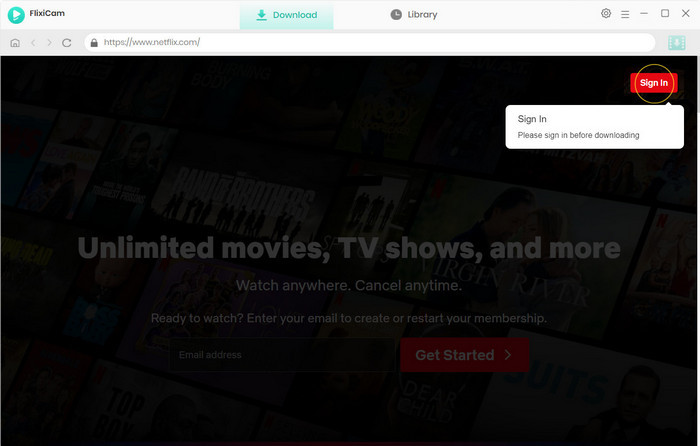
Step 1.Run FlixiCam on a PC and Log into Netflix Account
It is recommended to download FlixiCam before downloading Netflix titles with it. After launching FlixiCam on your computer, tap on "Sign In" to log into your Netflix account.
Step 2.Customize the Output Settings
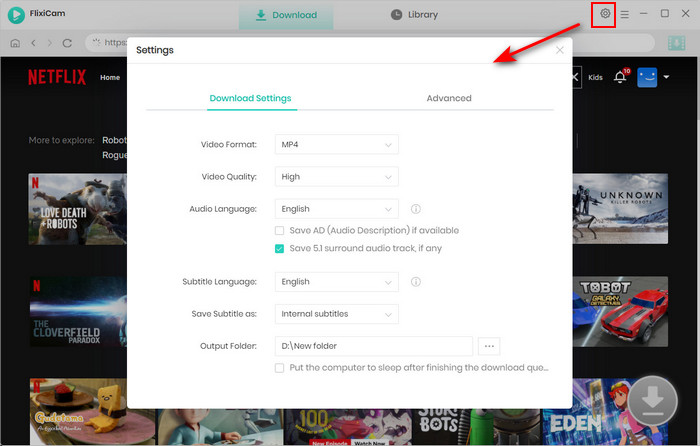
Please click the gear icon in the top-right corner to access the General settings and select output parameters. MP4 or MKV format can be chosen for the output format. You can also choose the video quality (High, Medium, Low), output folder, and languages of audio tracks and subtitles. You can set the output path to the USB drive in this step.
Step 3.Add Videos on FlixiCam
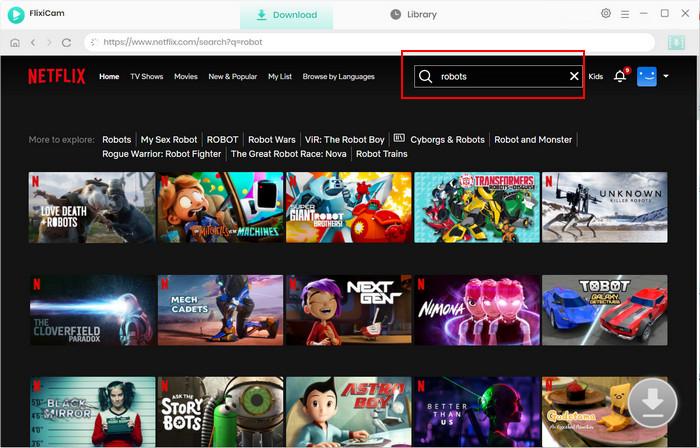
To find the videos you want to download, you can directly enter the video's name in the search box on FlixiCam. The results will soon be listed.
Step 4.Select Audio Track and Subtitle
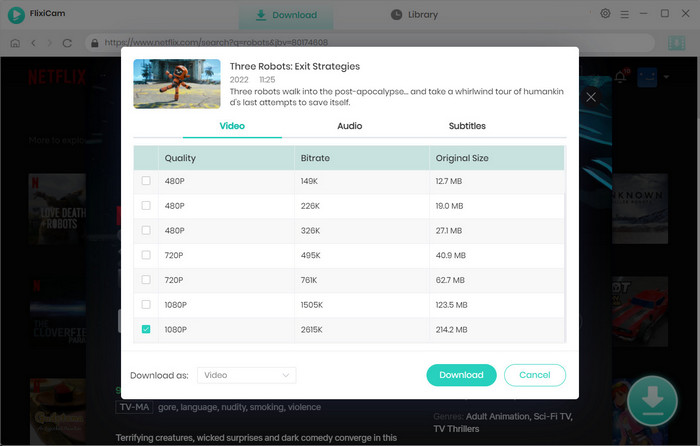
You can customize the audio and subtitle tracks here. To download a TV show, directly click on the green Download icon, and you can choose the seasons and titles first. Then you can click the "Advanced Download" at the bottom left. A window will pop up, allowing you to select the show's title, seasons, and audio track.
To download a Netflix movie, simply click the green Download icon, and you can customize the output parameters.
Step 5.Start to Download Netflix Videos
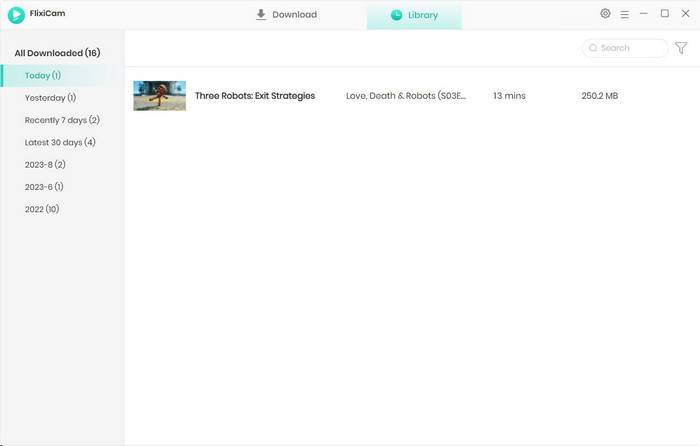
Just click the download button after finishing the settings. Once the Netflix video download is complete, you can access it locally by choosing Library or by looking in the destination folder.
Step 6.Play Downloaded Netflix Videos on Roku
1. Connect the USB drive (with Netflix downloaded videos) to your Roku device's USB port, then from the home screen, go to Settings > System > USB Media to enable USB playback.
2. Return to the home screen, open the pre-installed Media Player app (install from the Roku Channel Store if missing), and select your USB drive.
3. Browse to the folder with your downloaded Netflix MP4/MKV files and choose a video to start playback.
4. What You Can Get with FlixiCam Netflix Downloader
Permanent Netflix Access
Officially downloaded Netflix videos expire in 7 days if unwatched, or 48 hours after first playback. However, FlixiCam allows you to save Netflix content as local MP4/MKV files, letting you access, rewatch, and keep them permanently, even after canceling your subscription or if the title leaves Netflix.
Smooth Viewing Without Internet
Unlike Netflix's official feature, which doesn't support Windows operating systems, FlixiCam lets you download Netflix shows and movies directly to Windows laptops. You can enjoy content Netflix without relying on spotty Wi-Fi or unexpected disconnections ruining your watch time.
Netflix Anywhere
Netflix MP4 Downloads are free from the Netflix app's restrictions. You can transfer Netflix to iPads, Android phones, smart TVs (via USB), old MP4 players, or any device that supports standard video formats. No expiration dates or app-only limitations!
Final Thoughts:
If Netflix isn't working on Roku, try simple fixes like restarting your device or checking your network. If issues persist, FlixiCam Netflix Downloader is a reliable conversion tool, letting you download Netflix for offline playback and enjoy your favorite Netflix shows at home or on the go. Don't let glitches ruin your entertainment—act and keep streaming!
📢 Disclaimer
All tutorials here are for personal entertainment & education only. Please ensure you have a valid legal account on the relevant platforms. We do not support commercial distribution or piracy — always respect content creators' copyrights.
Ashley Wood | Senior Writer