2026 Guide: How to Do a Watch Party on Netflix
 Ashley Wood
- 19 January, 2026
- Blog
Tired of missing out on shared movie nights with friends just because you're miles apart? Or frustrated when sync issues and spotty Wi-Fi ruin your group Netflix nights?
No need to worry! This guide breaks down exactly how to do a watch party on Netflix whether live or offline. With the right tools, you can host a smooth, fun Netflix watch party!
To start, let's address a frequently asked question: Does Netflix have a built-in watch party feature?
Unfortunately, the answer is no. Netflix does not provide tools to sync playback or chat with friends while streaming. Therefore, we need to rely on third-party tools to make this possible.
📍 If you want to watch Netflix anytime on any device, skip directly to Part 2 for Flixicam Netflix Downloader - download your favorite Netflix videos to MP4/MKV, watch with friends without real-time sync.
Grab Flixicam to make your watch party simpler and more fun!👇
 DOWNLOAD WIN FOR FREE
 DOWNLOAD MAC FOR FREE
1. How to Do a Watch Party on Netflix: Live Streaming Methods
If you want to watch Netflix with friends in real time, these tools will sync playback and let you chat. Each works slightly differently, so pick the one that fits your group's devices and habits.
1. Teleparty (Formerly Netflix Party)
Teleparty is one of the most popular browser extensions for watch parties, and it's free to use. It syncs Netflix, Disney+ and other streaming services so you can watch with friends together long distance.
Here's how to set it up for your Netflix session:
Step 1: Go to the Teleparty website and add it to your Chrome, Edge, or Firefox browser. Pin the "TP" icon to your toolbar for easy access.
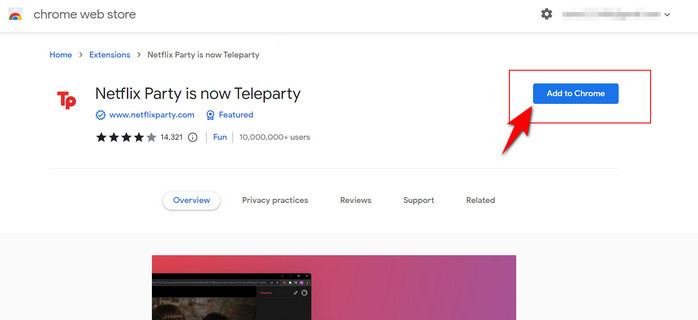
Step 2: Log into your Netflix account, choose a movie or show, and start playing it (then pause quickly to wait for friends).
Step 3: Click the Teleparty icon in your toolbar. Toggle "Only I have control" if you want to manage playback, then click "Start Party" to generate a unique link.
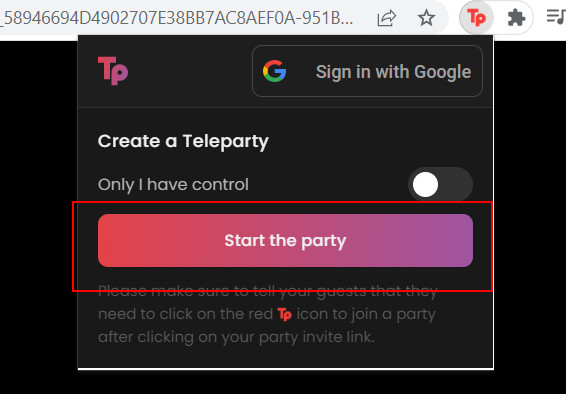
Step 4: Copy the link and send it to your group. Friends will need to install Teleparty and log into their own Netflix accounts to join.
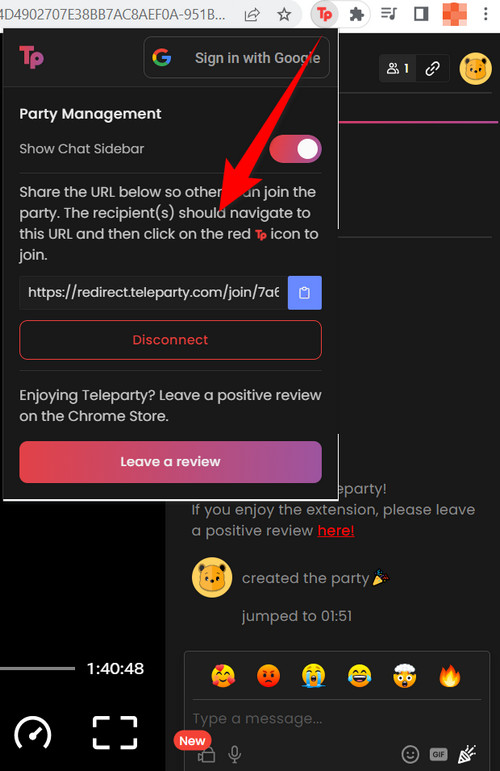
Step 5: Once everyone joins, hit play! Use the built-in chat to share reactions.
2. Scener (For Video Chat + Multi-Platform Support)
If you want to see your friends' faces while watching, Scener is a great choice. It supports Netflix, Disney+, and more, and works on both computers and iPhones (hosting is limited to desktop, though):
Step 1: Install the Chrome extension (for desktop) or download the iPhone app (for joining only). Everyone needs a free Scener account.
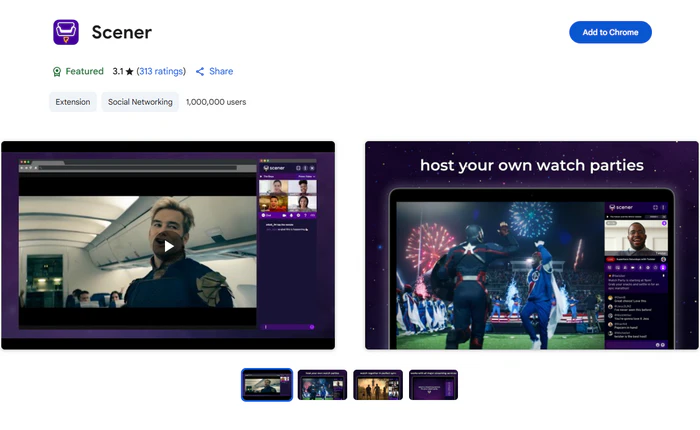
Step 2: On desktop, click "Host a Watch Party" in Scener.
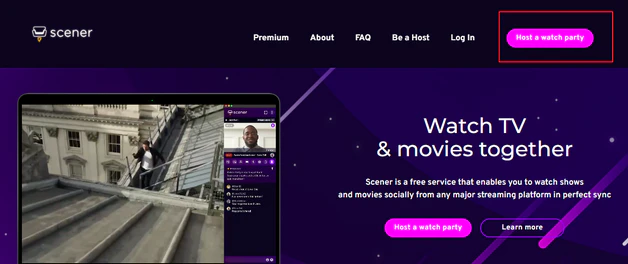
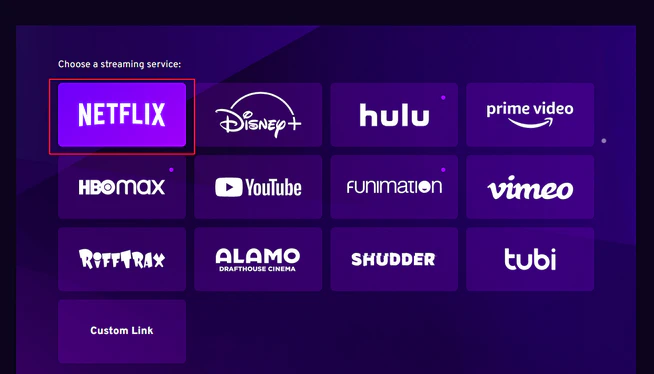
Step 3: Select Netflix. Log into your Netflix account and pick your video. Follow prompts to turn on your camera and microphone. This lets everyone see and talk to each other in real time.
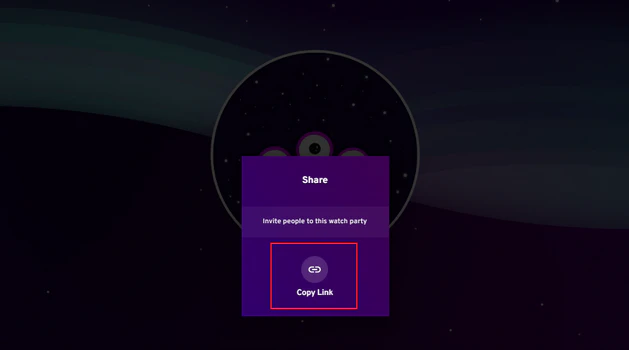
Step 4: Copy the party link and send it to friends. iPhone users can join via the app, while desktop users use the Chrome extension.
Step 5: Scener automatically syncs playback. Latecomers will jump to the current scene, so no one misses a moment.
3. Discord (For Screen Sharing + Voice Chat)
Discord is ideal if your group already uses the app for gaming or chatting. It lets you share your Netflix screen with friends, though you'll need to tweak a few settings first:
Step 1: Disable hardware acceleration in Chrome or Edge (this fixes black screens during streaming). In Chrome, go to Settings > Advanced > turn off "Use hardware acceleration when available".
Step 2: Log into Netflix in your browser (don't play yet) and open the Discord desktop app. Join or create a server.
Step 3: In Discord, go to User Settings > Activity Status > "Add it!" > select your browser. Then, click the screen share icon next to your browser name.
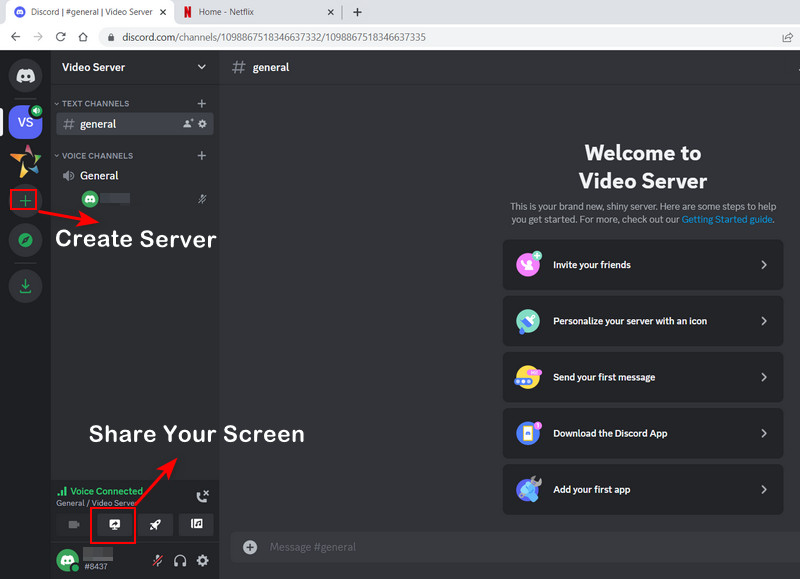
Step 4: Pick a channel for your party, tell friends to join, and click "Go Live". Adjust quality (720p for free, 1080p with Discord Nitro).
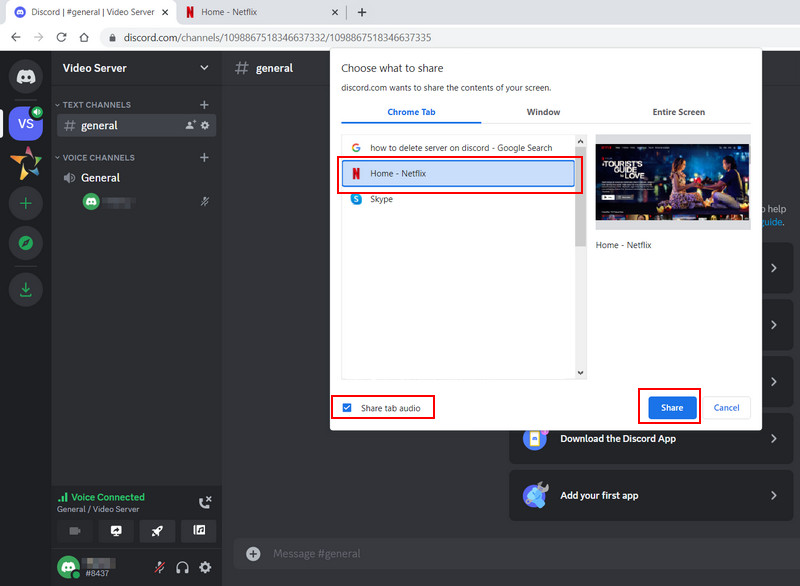
Step 5: Play your Netflix video, everyone in the channel will see your screen. Use Discord's voice chat to react together.
📍 Note that streaming Netflix on Discord may violate Netflix's terms of use, so use this method cautiously.
Live streaming is perfect when everyone has a stable internet connection. But let's be real, that's not always the case. What if your group is stuck with spotty Wi-Fi that causes constant buffering? Or if someone's connection drops mid-scene, ruining the shared vibe? What if you want to host a watch party somewhere with no internet at all, like a cabin or a road trip? And let's not forget the frustration of messy sync issues that leave some friends ahead and others behind, even with decent Wi-Fi.
The solution is simple: download Netflix movies and shows to MP4 - the most universally compatible format - so you can watch offline, avoid buffering entirely, and host a perfect party without relying on live sync or spotty internet!
2. How to Do a Watch Party on Netflix Offline: Using Flixicam Netflix Downloader
FlixiCam Netflix Downloader is a desktop tool designed to download Netflix movies and TV shows effortlessly. It download Netflix videos in MP4 or MKVformat for wide compatibility, letting you watch Netflix offline on any device. With support for HD quality, multilingual subtitles, and 10x batch downloads, FlixiCam offers a convenient and flexible viewing experience.
What Make FlixiCam the Top Choice:
- Built-in Netflix web player for direct search & playback.
- Saves HD video (up to 1080 p) in MP4 or MKV universal format.
- Stores downloads locally without expiration for permanent access.
- Support batch download Netflix in 10x speed.
- Enables playback of downloaded Netflix content on any device.
Compatibility: Windows 10/11, macOS 11 and above.
📍 If you're looking for a tool to download any streaming video (including Netflix, Disney+, Amazon Prime Video, Hulu, HBO Max, Paramount+, Peacock, Apple TV+ …) to MP4, Flixicam Stream One is the top pick.
Tutorial: How to Do a Watch Party on Netflix Offline with Flixicam Netflix Downloader
Step 1.Run FlixiCam on a PC and Log into Netflix Account
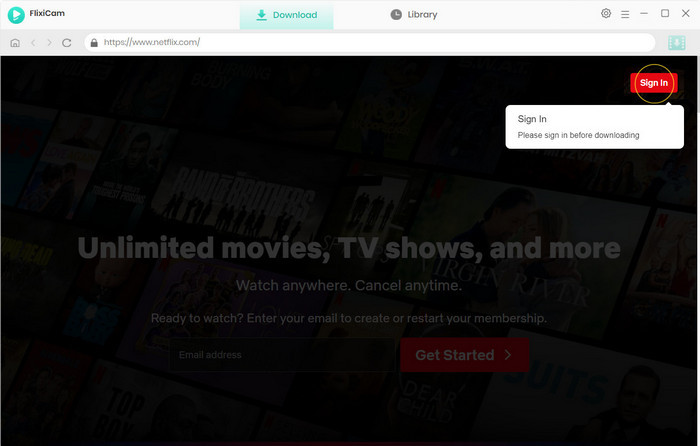
It is recommended to download FlixiCam before downloading Netflix titles with it. After launching FlixiCam on your computer, tap on "Sign In" to log into your Netflix account.
Step 2.Customize the Output Settings
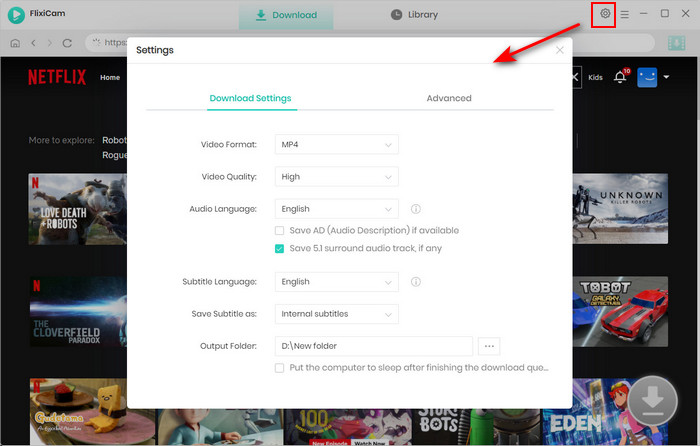
Please click the gear icon in the top-right corner to access the General settings and select output parameters. MP4 or MKV format can be chosen for the output format. You can also choose the video quality (High, Medium, Low), output folder, and languages of audio tracks and subtitles. You can set the output path to the USB drive in this step.
Step 3.Add Videos on FlixiCam
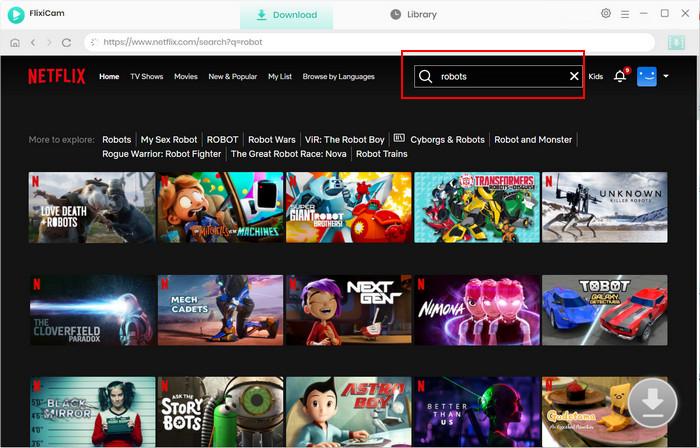
To find the videos you want to download, you can directly enter the video's name in the search box on FlixiCam. The results will soon be listed.
Step 4.Select Audio Track and Subtitle
You can customize the audio and subtitle tracks here. To download a TV show, directly click on the green Download icon, and you can choose the seasons and titles first. Then you can click the "Advanced Download" at the bottom left. A window will pop up, allowing you to select the show's title, seasons, and audio track.
To download a Netflix movie, simply click the green Download icon, and you can customize the output parameters.
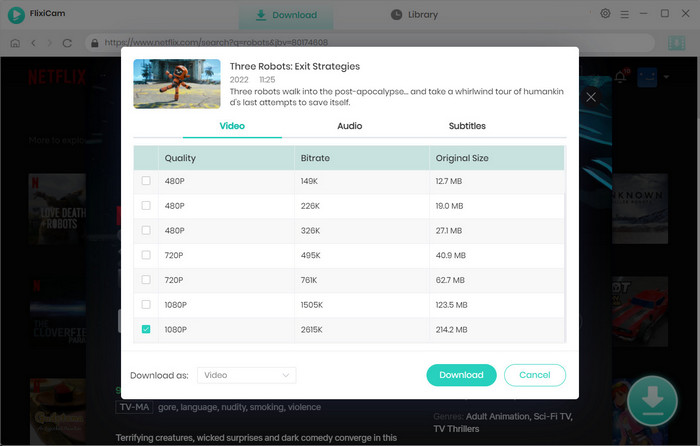
Step 5.Start to Download Netflix Videos
Just click the download button after finishing the settings. Once the Netflix video download is complete, you can access it locally by choosing Library or by looking in the destination folder.
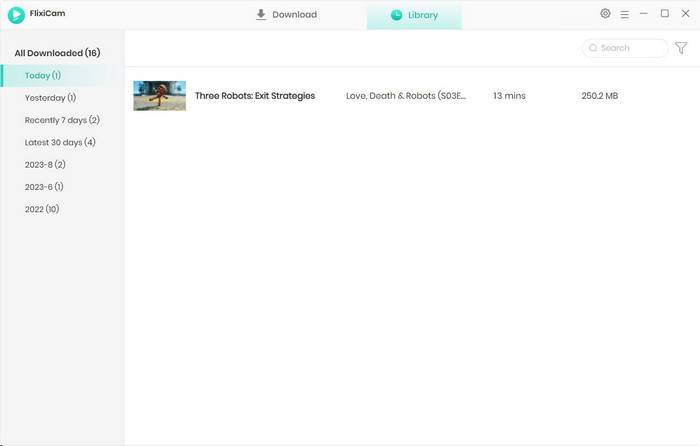
Step 6.Host an Offline Netflix Watch Party with Downloaded MP4 Files
Option 1: Watch Together in Person (With a Projector or TV)
- Plug your laptop with the MP4 files into a projector, smart TV, or monitor using an HDMI cable. If you're using a phone or tablet, use Chromecast or AirPlay to cast the MP4 file to the TV.
- Since you're all in the same room, just hit play on the MP4 file, and everyone will watch in sync. Use a portable speaker for better sound to enjoy the great movie night vibe!
Option 2: Watch Remotely (With Screen Sharing)
- Open the MP4 file on your laptop, then start a Zoom/Meet call with your friends. Click "Share Screen" and select the window with the MP4 video.
- Count down so everyone starts watching at the same time. Use the call's audio to chat (no need for extra chat tools!).
3. What's the Best Tool to Host a Watch Party on Netflix?
Teleparty
✅ Pros
- Free and easy to set up as a browser extension (supports Chrome, Edge, Firefox).
- Built-in chat feature for real-time reactions.
- Allows the host to control playback.
🔴 Cons
- Works best on desktops/laptops; mobile browser experience is less smooth.
- No video chat feature.
Scener
✅ Pros
- Supports video chat to see friends' faces while watching.
- Works with multiple platforms (Netflix, Disney+, etc.).
- Compatible with desktop (Chrome extension) and iPhones (joining only).
- Automatically syncs playback; latecomers catch up to the current scene.
🔴 Cons
- Hosting is limited to desktop devices.
- All participants are required to have a Scener account.
Discord
✅ Pros
- Ideal for groups already using Discord for gaming/chatting.
- Offers voice chat for real-time interaction.
- Supports 1080p with Discord Nitro.
- No extra extensions needed beyond the Discord app.
🔴 Cons
- May violate Netflix's terms of use.
- Requires disabling hardware acceleration in the browser to avoid black screens.
- Playback sync relies on manual screen sharing, which can be less stable.
- Free version supports 720p streaming.
Flixicam Netflix Downloader
✅ Pros
- Downloads Netflix videos to MP4/MKV for offline viewing.
- Preserves original quality (up to 1080p) and multi-language subtitles/audio.
- Fast batch downloads (10x speed) for entire seasons.
- Friends don't need a Netflix subscription (only the host does).
- Works on any device (laptops, phones, TVs, projectors) via MP4 files.
🔴 Cons
- Not a live streaming tool; requires pre-downloading Netflix videos.
- Requires installation on a PC (not a browser extension).
- Full access to download complete Netflix videos requires a paid subscription (free trial has 5-minute download limit per video).
To sum up, Flixicam is the best Netflix watch party tool for flexibility and ease of use: it lets you download Netflix videos as MP4/MKV files, works on any device, and only the host needs a Netflix subscription. No tricky live sync anymore, just download ahead of time and enjoy together hassle-free!
4. FAQs About How to Do a Watch Party on Netflix
Do All Participants Need a Netflix Subscription?
For live streaming tools (Teleparty, Scener): Yes. Everyone needs their own Netflix account to access the video.
For Flixicam offline parties: Only the host needs a Netflix subscription to download the video. Friends don't need an account - they just need to watch the MP4 file you share (via screen sharing or in person).
Can I Watch Netflix in MP4 Format Without Flixicam?
Netflix's native download feature doesn't let you save Netflix videos as MP4. They're only playable in the Netflix app. Flixicam is the easiest way to download Netflix videos to MP4 for offline use. Get FlixiCam to unlock MP4 Netflix downloads hassle-free!👇
Get FlixiCam to unlock MP4 Netflix downloads hassle-free!👇
Is Flixicam Safe to Use?
Yes! Flixicam doesn't share your data. It allows you to downloads your Netflix videos to MP4 or MKV for personal use.
Conclusion
Learning how to do a watch party on Netflix doesn't have to be complicated. Whether you prefer live streaming with Teleparty or Scener, or offline viewing with Flixicam's MP4 downloads, the key is to choose a method that fits your group's needs. Flixicam Netflix Downloader stands out because it addresses two major pain points: it lets you watch Netflix without an internet connection, and it downloads Netflix videos to MP4 for maximum compatibility, so you can host a party anywhere, on any device!
📢 Disclaimer
All tutorials here are for personal entertainment & education only. Please ensure you have a valid legal account on the relevant platforms. We do not support commercial distribution or piracy — always respect content creators' copyrights.
Ashley Wood | Senior Writer